
How to Set Up a Google Play Closed Testing Track (2026 Play Console)
A screenshot walkthrough of setting up a closed testing track in the current Play Console: finding the Alpha track, choosing countries, creating a tester email list from CSV, uploading the AAB, fixing the four errors a new app hits on its first release, sending for review, sharing the opt-in link, and the production access conditions.
How to Set Up a Google Play Closed Testing Track (2026 Play Console)
Personal developer accounts created after November 2023 must run a closed test with at least 12 opted-in testers for at least 14 days before they can publish to production. The Play Console keeps changing, though, so older guides often describe buttons and screens that no longer look the same.
This guide follows a real new app that we took through closed testing from scratch in October 2026. It goes in order: finding the track, adding testers, uploading the first release, sending it for review, sharing the opt-in link, and checking the production access conditions.
Note: The screenshots were taken in the Korean Play Console. Layouts are identical in every language, and the red boxes and numbers mark where to click. Button names below are the usual English labels; the exact wording may differ slightly in your console.
Tip: For the full journey from creating a developer account to release, see Google Play Developer Account: 2026 Setup Guide. This guide starts right after you have created the app.
Step 1: Find the closed testing track
Open Test and release > Closed testing from the left menu. New apps already come with a Closed testing - Alpha track, so you don't need to create one. Click Manage track on the right.
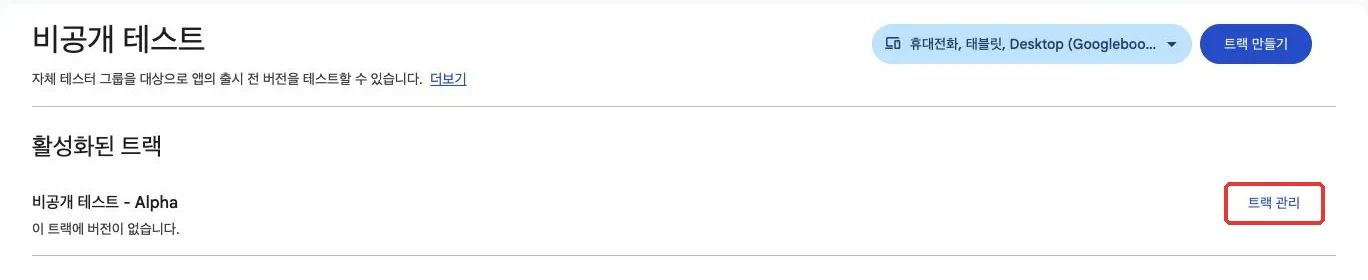
The track page shows a task list at the top. Work through it in order: ① select countries → ② select testers → ③ create a new release. The track shows as inactive until it passes review and is published.
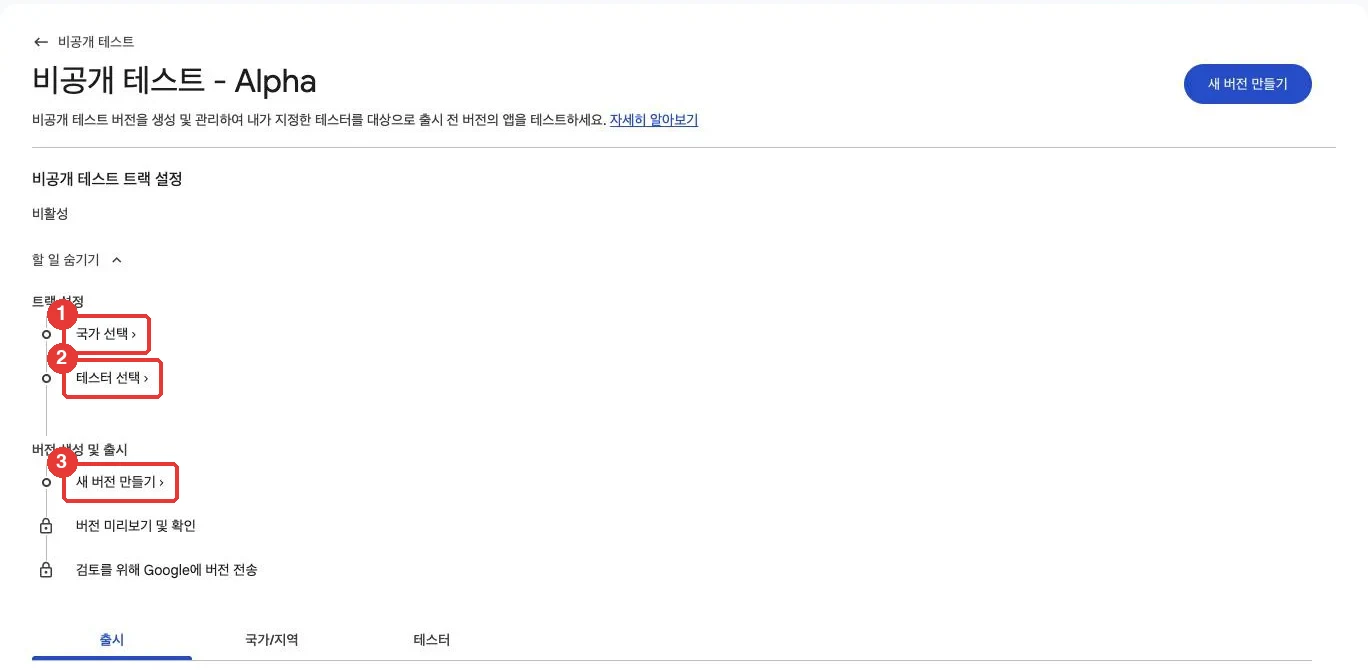
Step 2: Choose countries/regions
Open the Countries/regions tab below the task list. A new track has no countries selected. Click Add countries/regions, then ① search for a country, ② check it, and ③ click Save.
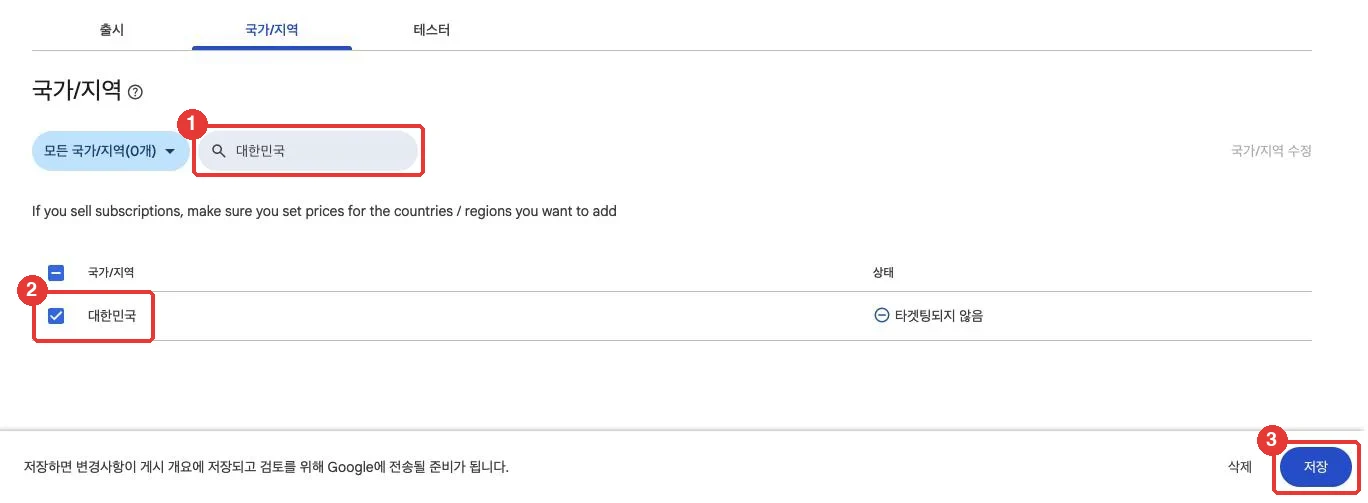
Saving does not publish anything yet. Changes collect in the Publishing overview and are sent for review together later.
Note: If you run your test with Doply, South Korea must be included. Doply's testers are in Korea, so without it they cannot install your app.
Step 3: Create a tester email list
Set your testers on the Testers tab. You can use email lists or Google Groups; most developers ① choose Email lists and ② click Create email list.
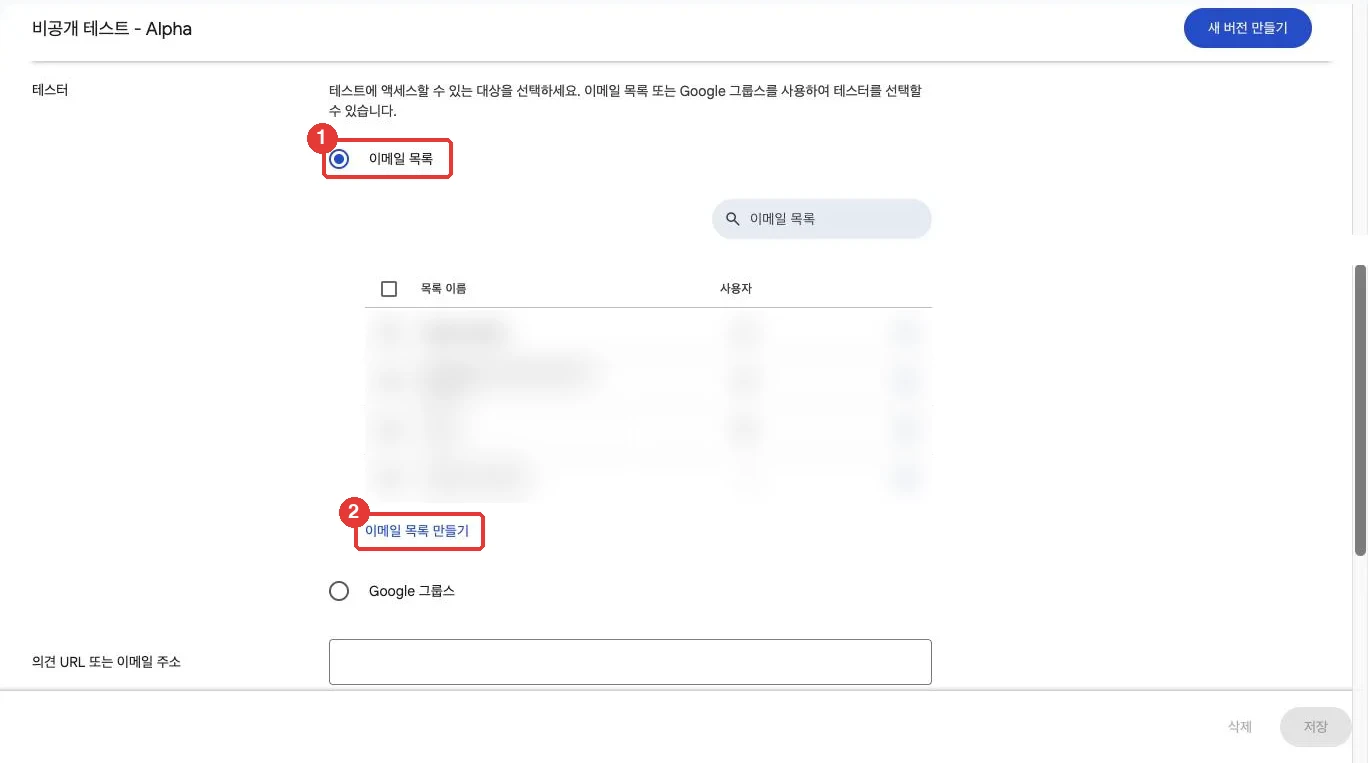
Email lists are shared across your whole developer account, not tied to one app. Lists you made for other apps appear here too, and you can reuse them by checking them.
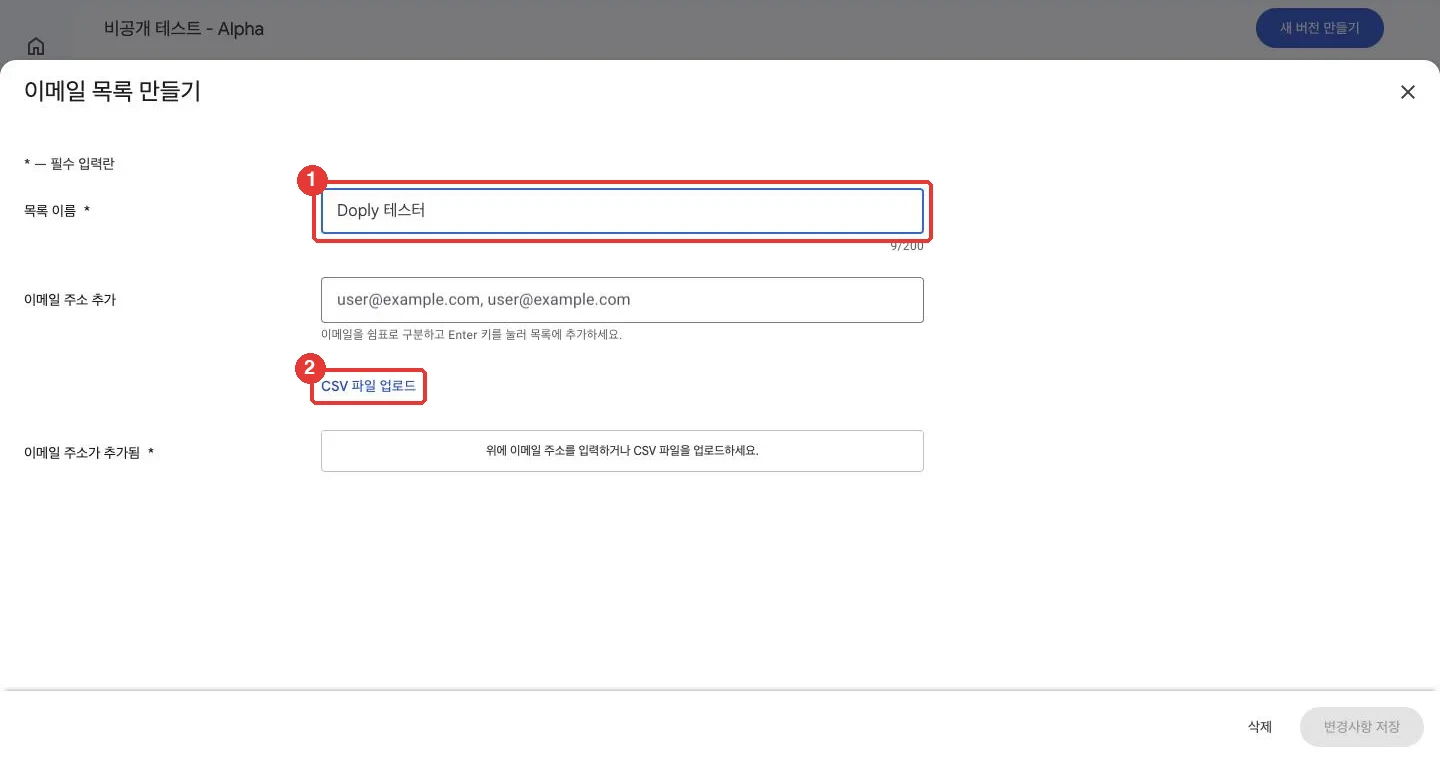
On the list screen, ① enter a list name and ② click Upload CSV file. You can type emails directly, but CSV is easier for many testers. Put one email per line with no header row.
In the new console, the CSV link opens an upload dialog first instead of a file picker. Attach the file, then click Add email addresses.
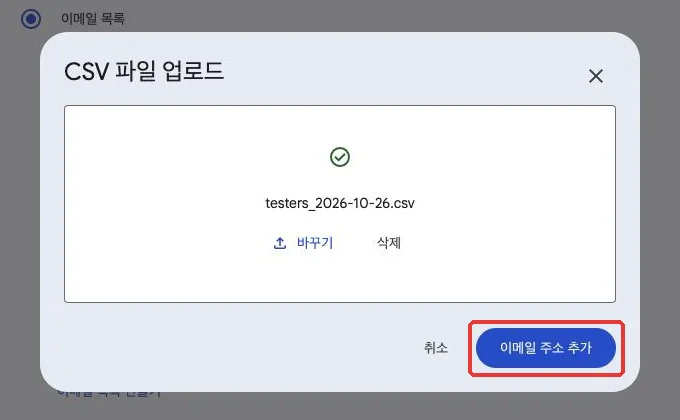
Watch out: Uploading a CSV to an existing list replaces its emails instead of adding to them. When you update a list, make sure nobody is left out.
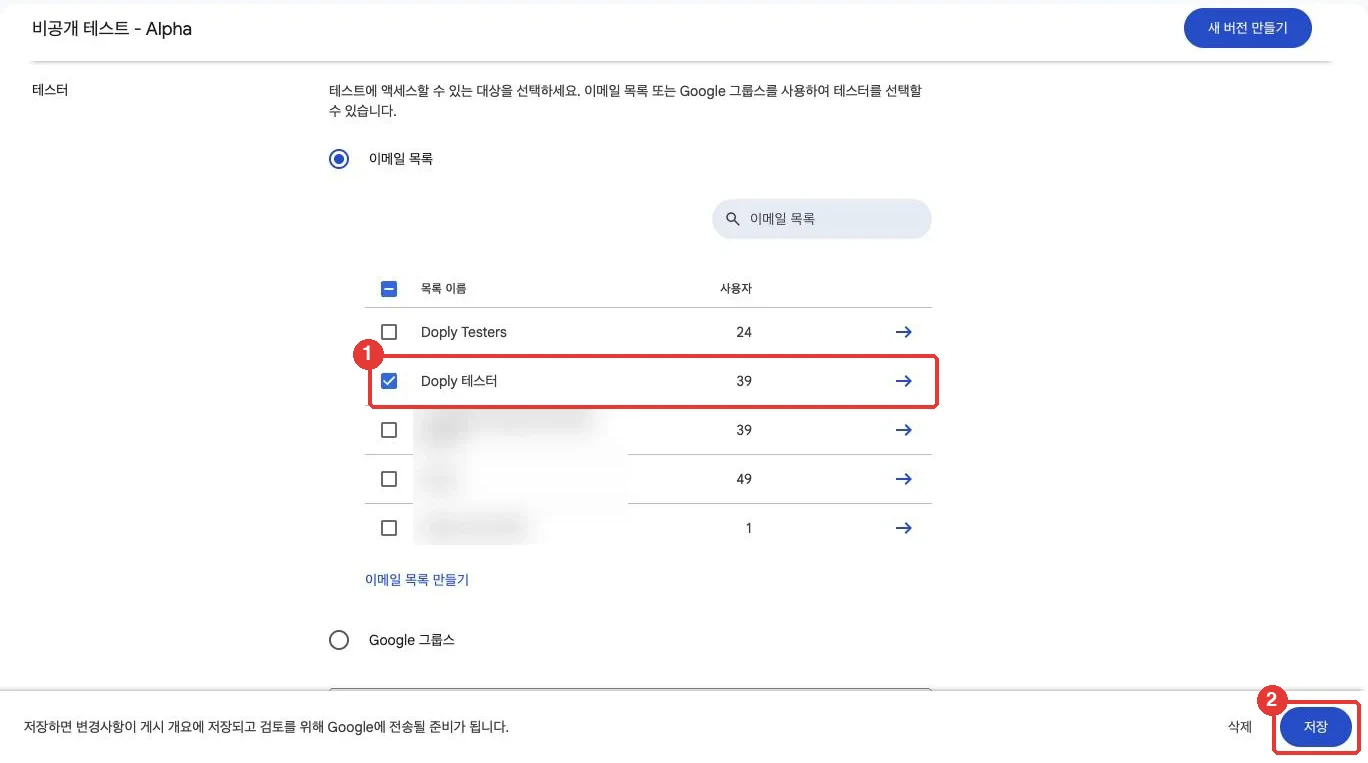
Once the emails appear, click Save changes, then Create in the confirmation dialog. Back on the Testers tab, ① the new list is already checked. Confirm it and ② click Save.
At the bottom of the Testers tab is the opt-in link you will send to testers. At this point it is greyed out. You can copy it only after the track passes review and is published (Step 7).

Step 4: Create a new release (upload the AAB)
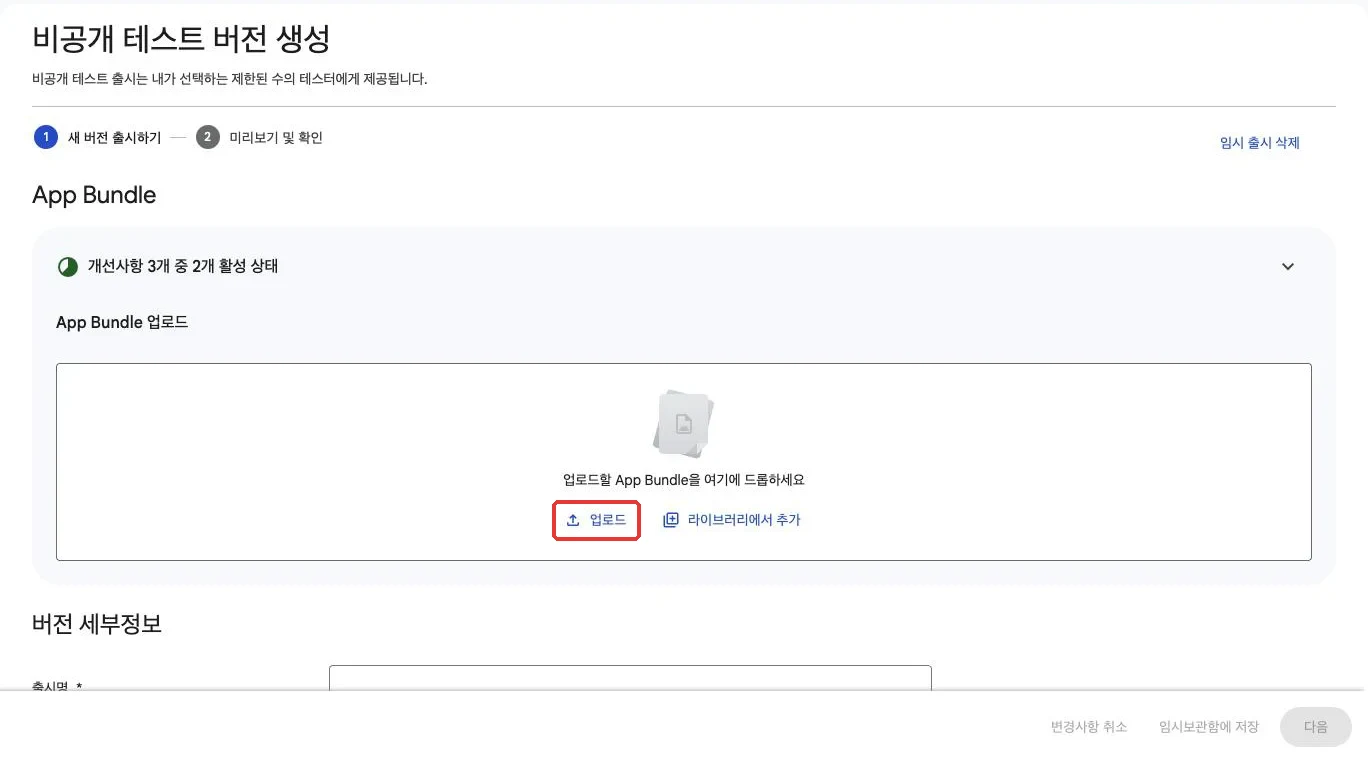
Click Create new release at the top right of the track page, then click Upload in the App bundles area and select your AAB.
When the upload finishes, the bundle appears as a row. ① Check the API levels (minSdk) and Target SDK here. The release name fills in automatically; add release notes and ② click Next.
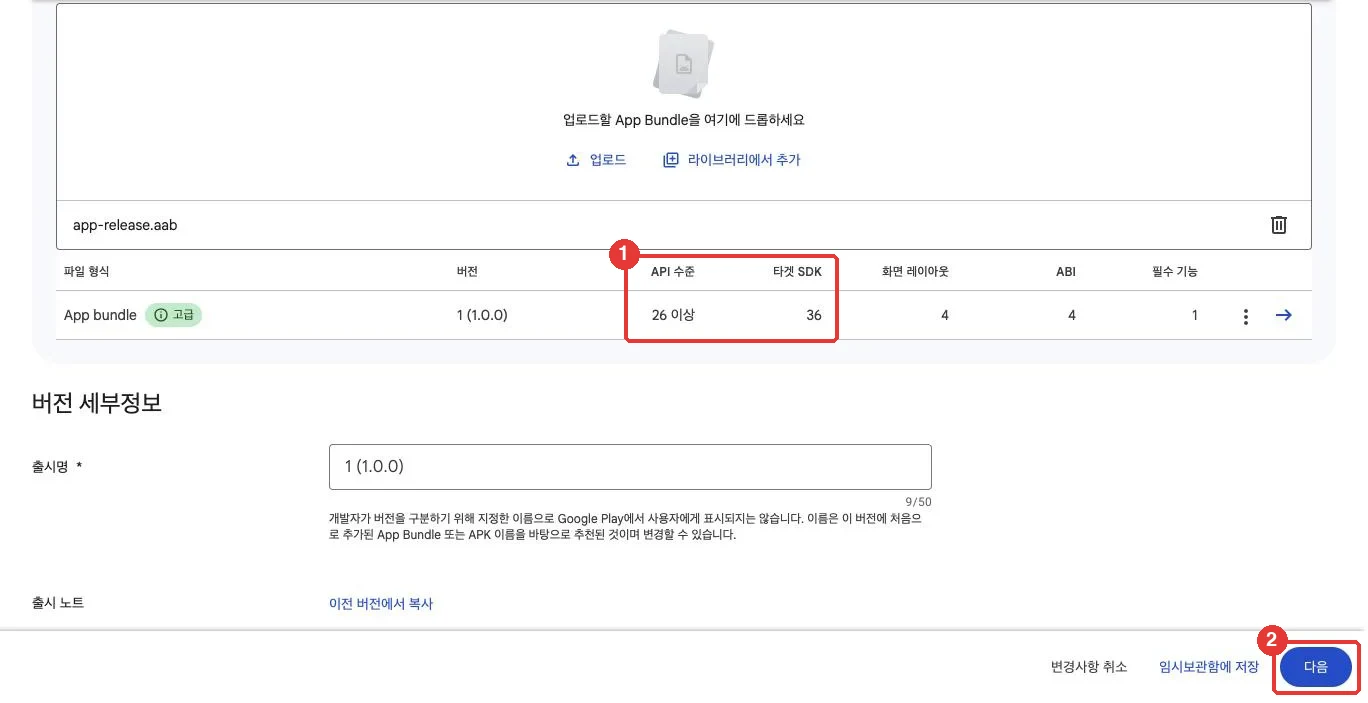
Note: Doply's test devices run Android 13 and 14, so your minimum API level must be 33 or lower to install. Target SDK 36 or 37 is recommended but does not affect installation.
Step 5: Fix the four errors on a new app's first release
A new app almost always gets stuck at Preview and confirm. We got ① four errors, and ② the release could not be saved until they were fixed.
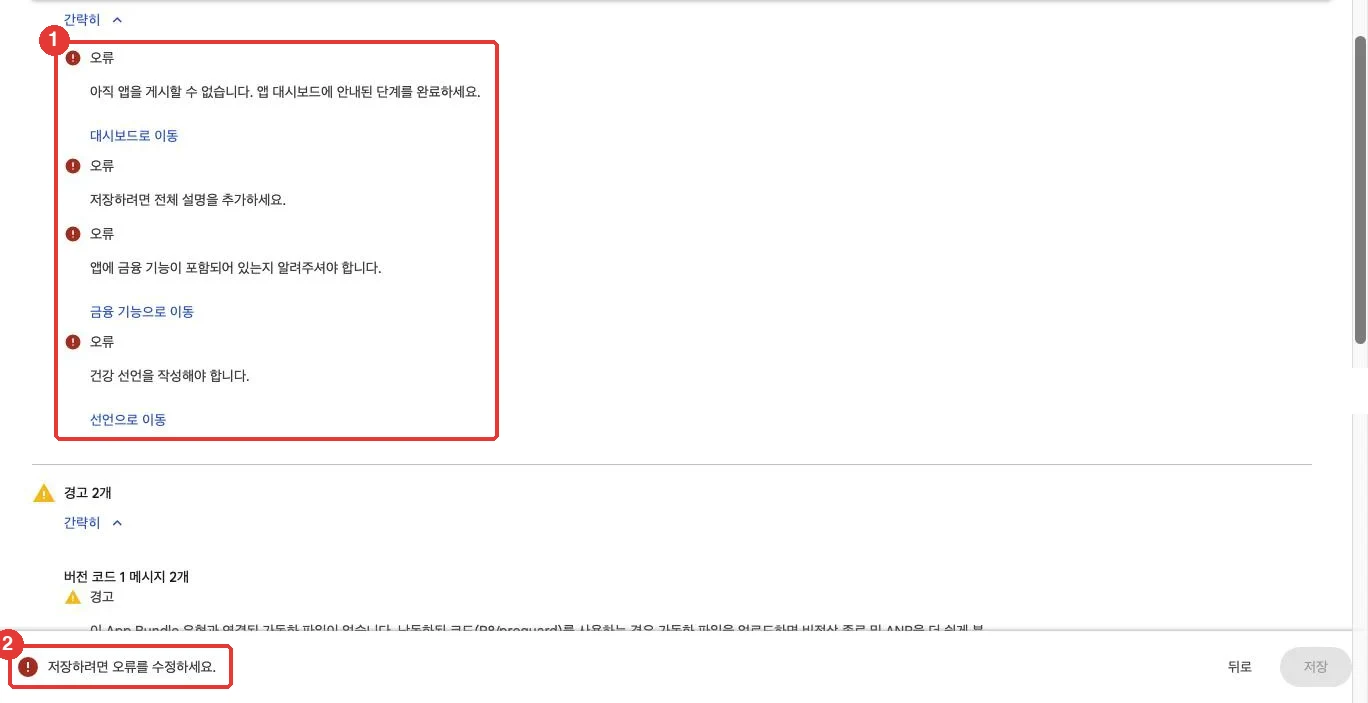
These were the four errors:
| Error | Where to fix it |
| Complete the steps on your app dashboard | Dashboard > Set up your app |
| Add a full description to save | Main store listing |
| Tell us whether your app has financial features | App content > Financial features |
| Complete the health declaration | App content > Health |
Go to dashboard opens the app setup task list. A new app has to complete every item here.
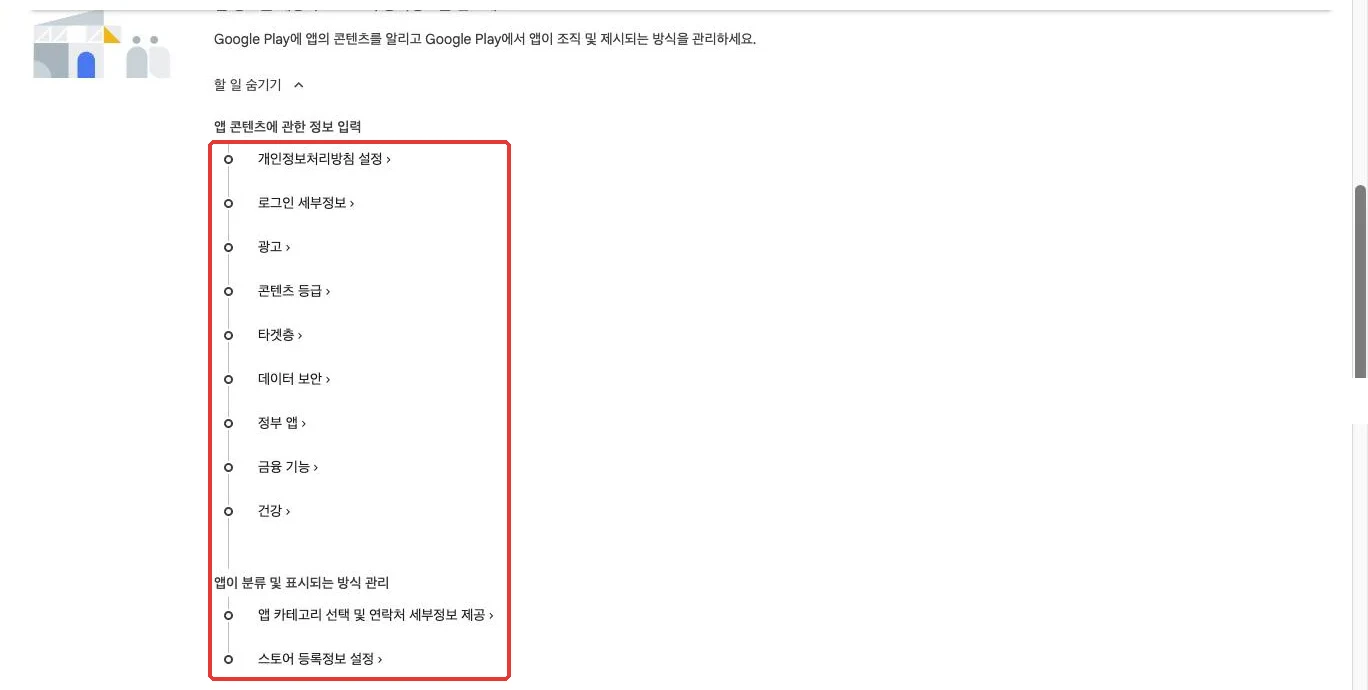
- Privacy policy: Required even if your app collects no data. It must be a public web page that opens without signing in.
- App access (sign-in details): If parts of the app need a sign-in, provide a test account for reviewers.
- Ads: Answer yes if an ads SDK is included.
- Content rating: Answer the questionnaire to get a rating.
- Target audience: Choose the age groups. Including children under 13 adds Families policy requirements.
- Data safety: Declare each type of user data that leaves the device. Firebase, ads, and sign-in SDKs usually count.
- Government apps / Financial features / Health: If they don't apply, choose no, or check the "does not have" option at the very bottom of the list. The lists are long, so scroll all the way down.
- App category and contact details, store listing: Fill in the category, a public email, short and full descriptions, the icon, the feature graphic, and phone screenshots.
Tip: In the new console, icons and screenshots don't go straight into their slots. Add assets opens an asset library; upload there, then pick the file. If any images were made with AI, you also label them as AI-generated in the review step.
After everything is filled in, go back to the release: the errors are gone and you can save. Warnings, such as a missing deobfuscation file or native debug symbols, do not block a closed testing release.
Step 6: Send changes for review
Open Publishing overview from the left menu. Everything you saved, including countries, testers, the release, and app content, is listed here. ② Make sure the tester change is in the list, then ① click Send changes for review.
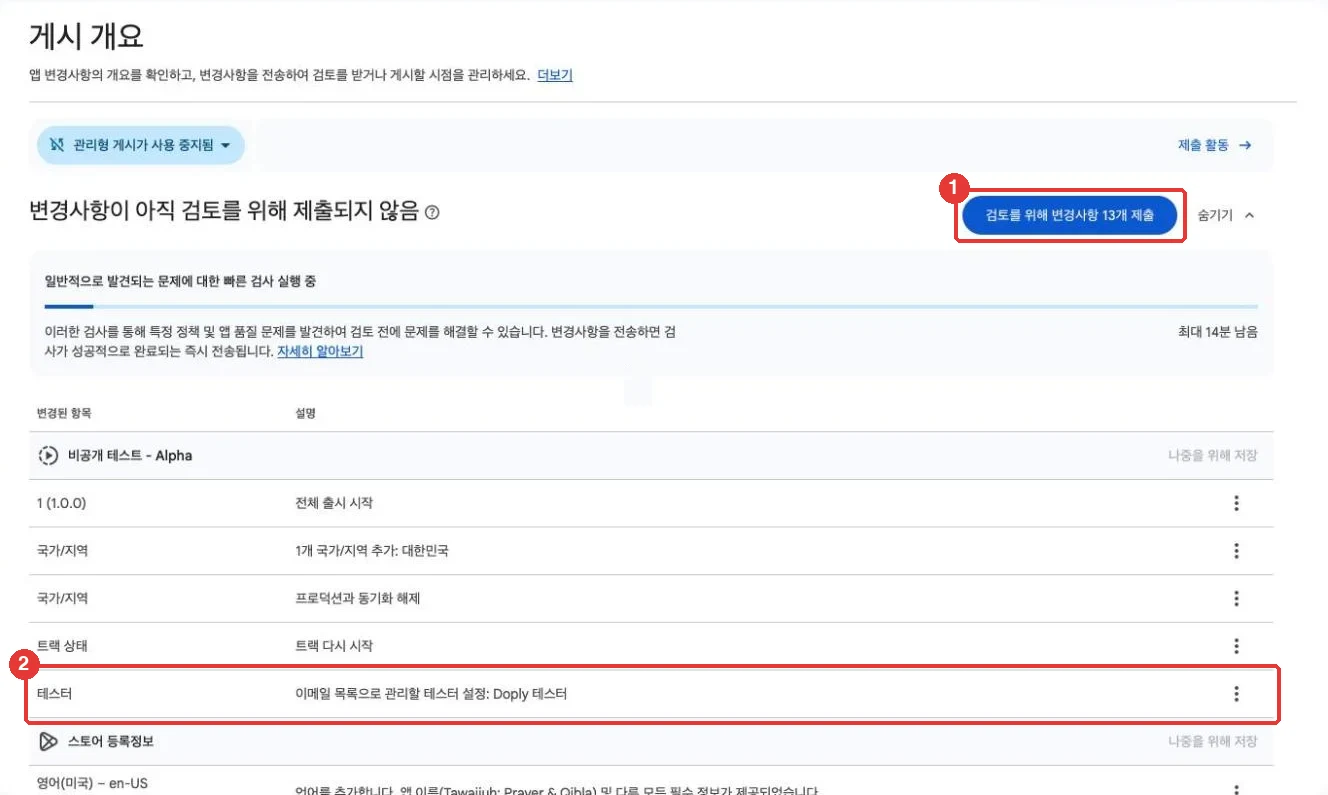
First a quick check for common issues runs (up to about 15 minutes), then the changes go to Google's review. While it's under review, the app dashboard shows Update status: In review.
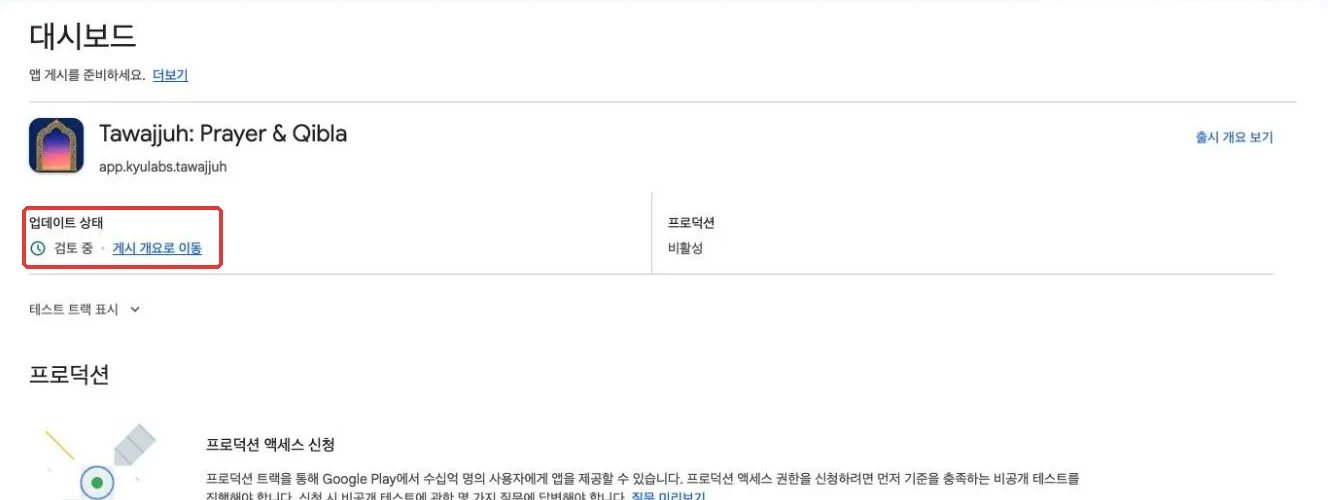
Our app passed review and was published automatically about an hour after we sent it. Review times vary by app and can take several days. If managed publishing is on, you have to click Publish yourself after the review passes.
Step 7: Copy the opt-in link and send it to testers
Once the review passes, the "In review" status disappears and you can copy the links under How testers join your test at the bottom of the Testers tab. Before publishing only the web link appeared, greyed out; after publishing, a Join on Android link appears as well.
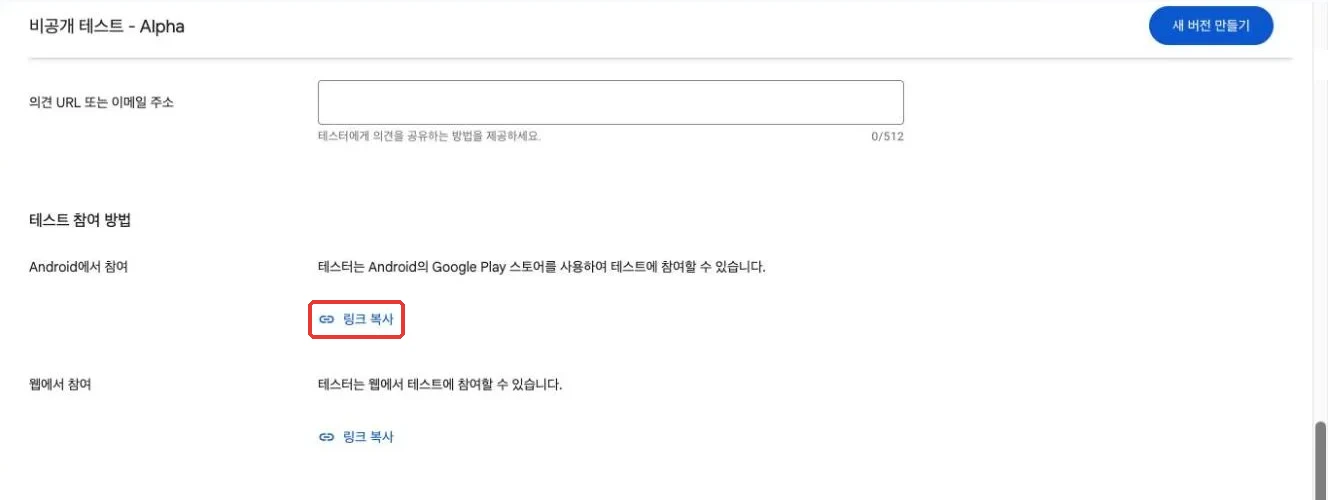
Testers must open the link while signed in with a Google account that is on your email list and tap Become a tester to be counted. Being on the list alone does not count them as opted in.
Step 8: Check the production access conditions
The Apply for production section of the app dashboard shows what's left. Once ① at least 12 testers have opted in and ② the closed test has run for at least 14 days, ③ the Apply for production button becomes active.
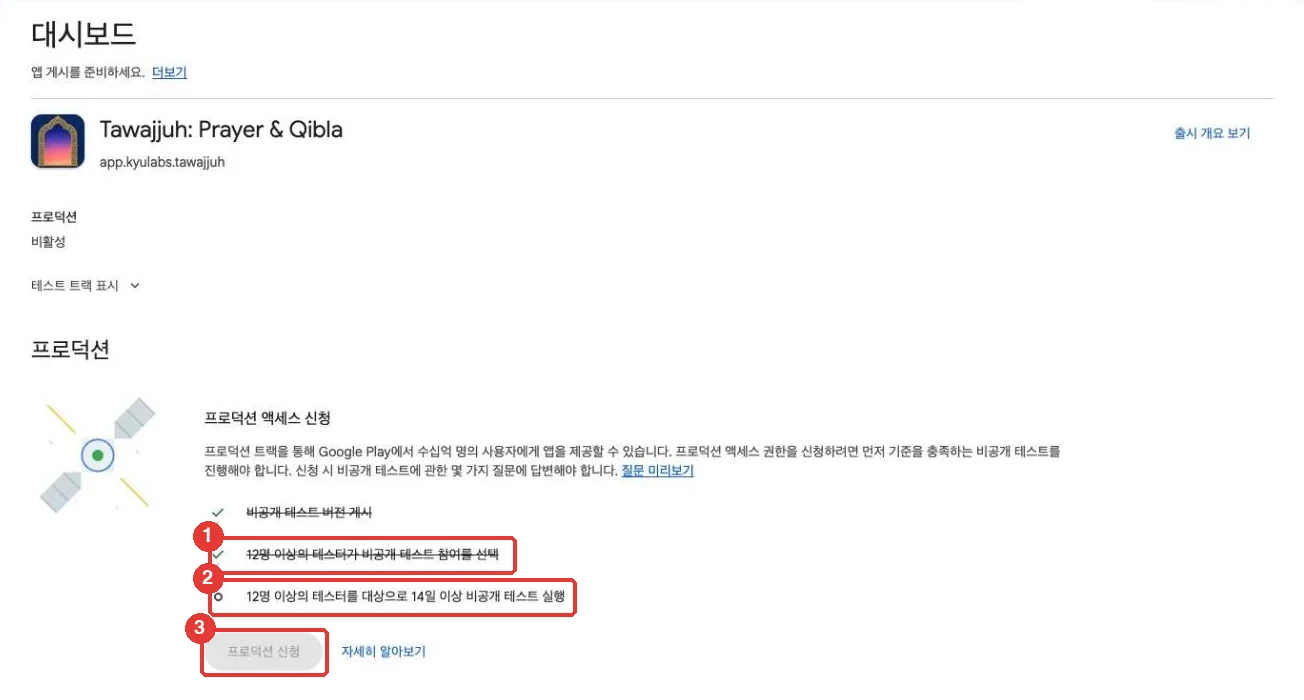
Google requires at least 12 testers to stay opted in for 14 days in a row, so don't let the count drop below 12 partway through.
Common sticking points
The opt-in link is greyed out
The track hasn't passed review yet. Check that you sent the changes from the publishing overview and whether the dashboard still says "In review".
I can't save the release
On a new app this means the app setup tasks or the store listing are incomplete. Follow the link next to each error in the preview screen and fill them in.
I added testers but the opted-in count is 0
Adding testers to the list doesn't count them. Each tester has to open the opt-in link with a listed account and tap Become a tester.
Can I reuse a tester list from another app?
Yes. Email lists are shared across your developer account, so just check the list on the Testers tab. If it's an old list, make sure those people can still take part.
If 12 testers for 14 days is the hard part
You only set up the track once, but gathering 12 testers and keeping them for 14 days takes more work than it sounds. Doply runs that part for you. Google requires 12 testers; Doply provides 14 to 16 testers and keeps the test running for 18 days, a buffer on top of Google's 14. Testing happens on 36 real Samsung Galaxy devices (Android 13/14), starts right after payment, and runs 24/7. Google decides on production access, so Doply cannot guarantee approval.
If you use Doply, add Doply's tester list as your email list in Step 3. The Doply guide walks through registering the tester list and adding your app.
Experience It Yourself
Simplify your Android app closed testing with Doply. Let us handle the complex tester management while you focus on core development.
Learn More →