Doply User Guide
The full process from preparing closed testing in Google Play Console, registering your app on Doply, running the 14-day test, and applying for production. Screenshots show the Play Console in Korean as of October 2026; the numbered labels below each screenshot explain what to click.
An app version must be published on the closed testing track
Create a closed testing release in Play Console, send it for review, and register it on Doply once 'In review' is over and it is published. For a newly created app, you must finish all 'Set up your app' tasks on the dashboard before you can save a release.
minSdk 33 or lower, targetSdk 36 or 37
Doply test devices run Android 13 and 14. If minSdk is 34 or higher, the app cannot be installed. Set it like defaultConfig { minSdk 33; targetSdk 36 } in build.gradle.
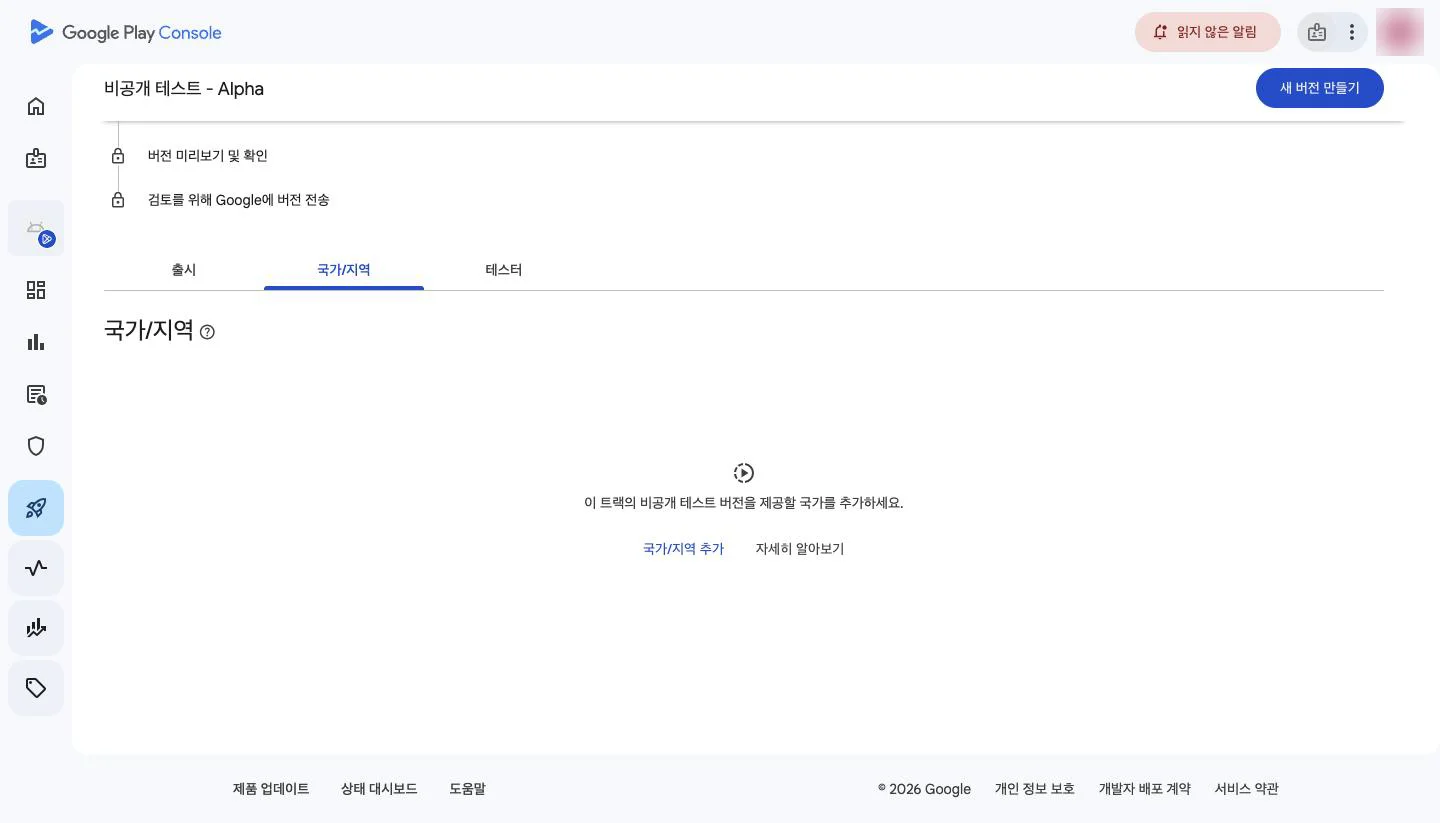
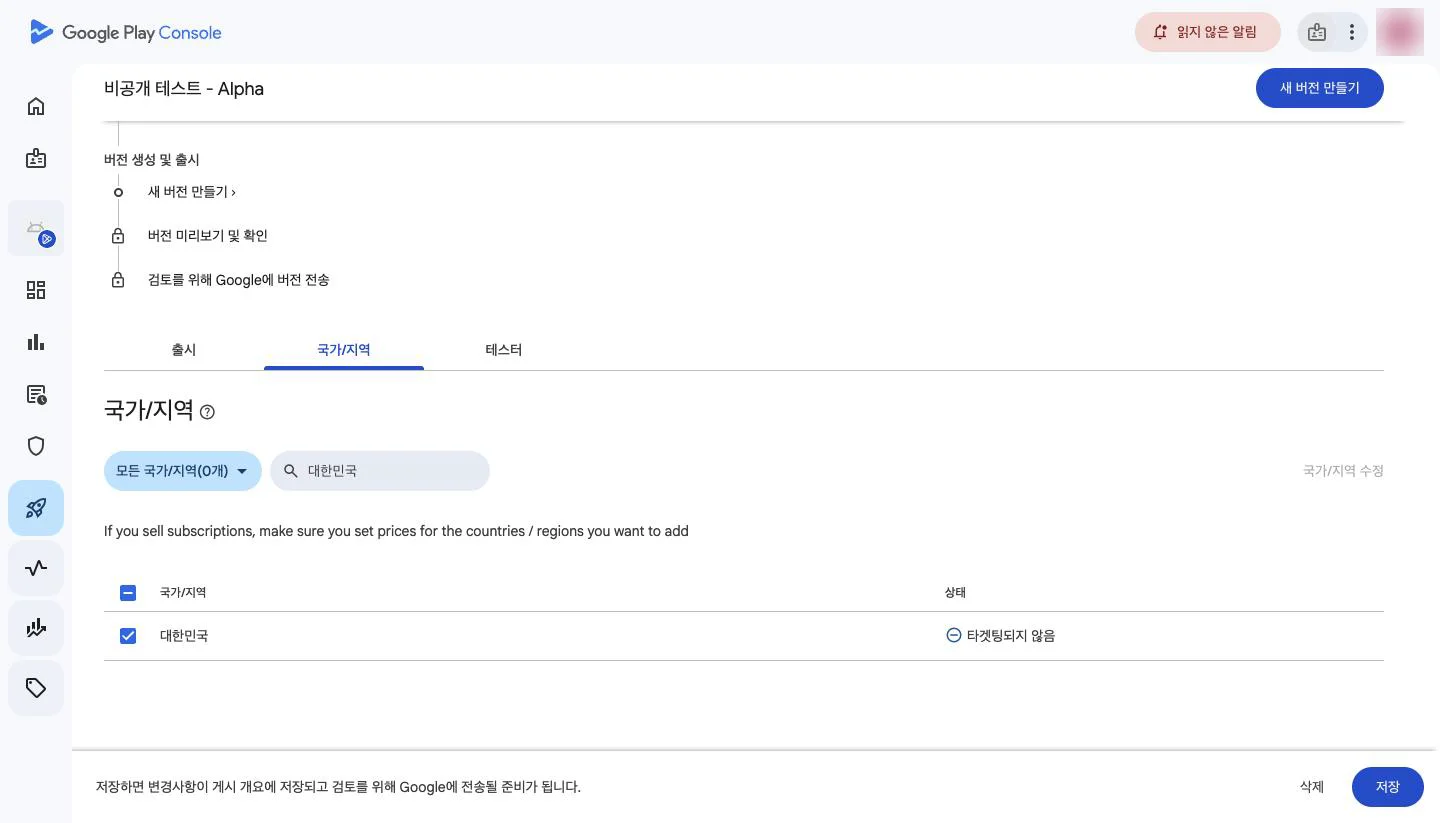
Include South Korea in countries/regions
Tester accounts are Korean accounts, so South Korea must be included on the closed testing track. You may exclude it on the production track.
Paid apps need a 100% discount during the test
Following the guide below, apply a 100% discount (free) for 14 days, then click 'Refind Installable Devices' on the app details page. Use the discount feature instead of switching the app to free, as a free app cannot be changed back to paid.
Discount setup guideTWA (Trusted Web Activity) apps are not supported
TWA apps have a low production approval rate, so we don't accept them. Switch to a native WebView or Capacitor and then use Doply.
- 1
Go to Test and release → Closed testing and click 'Manage track'
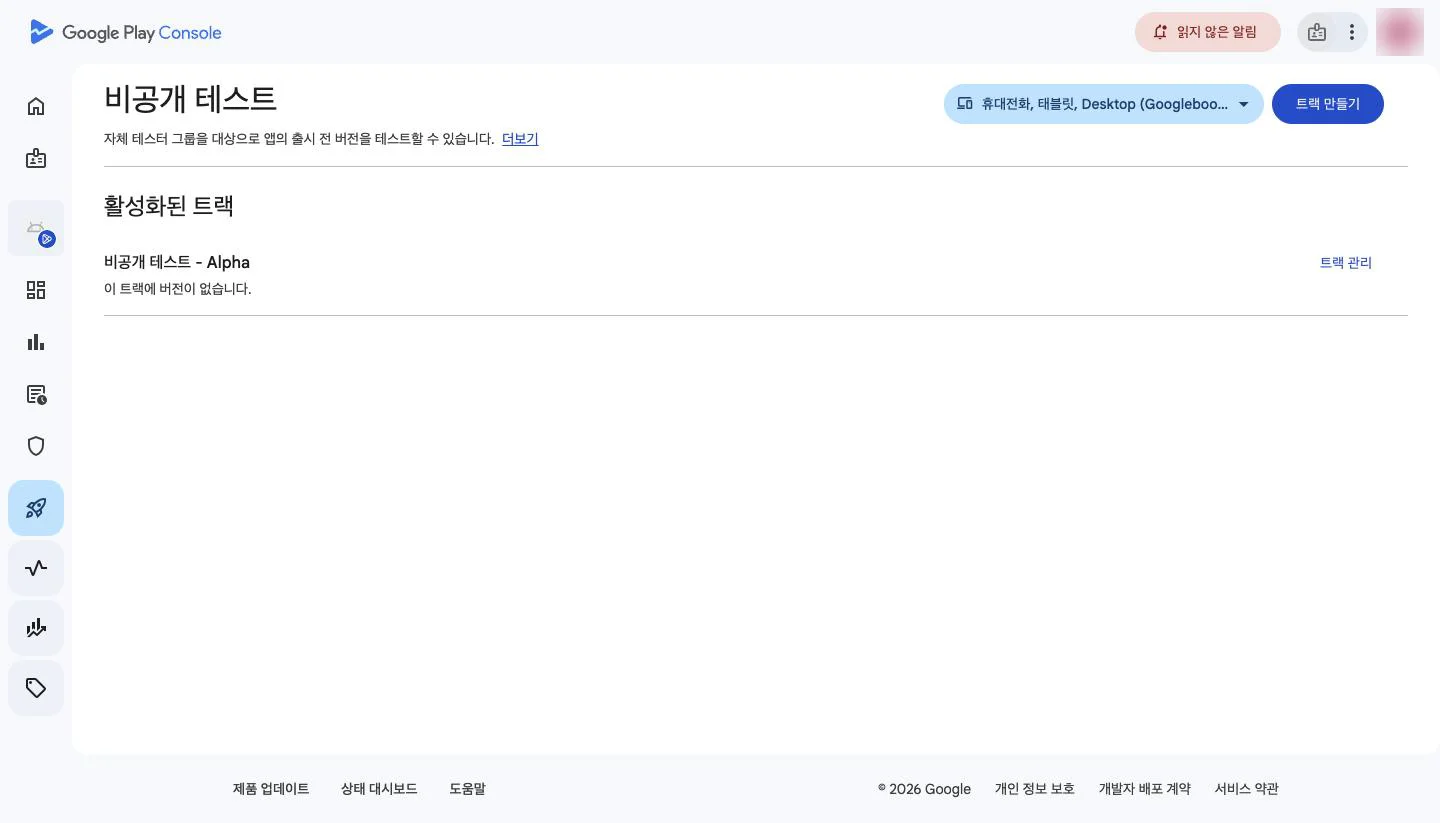
- 1Manage track
- 2
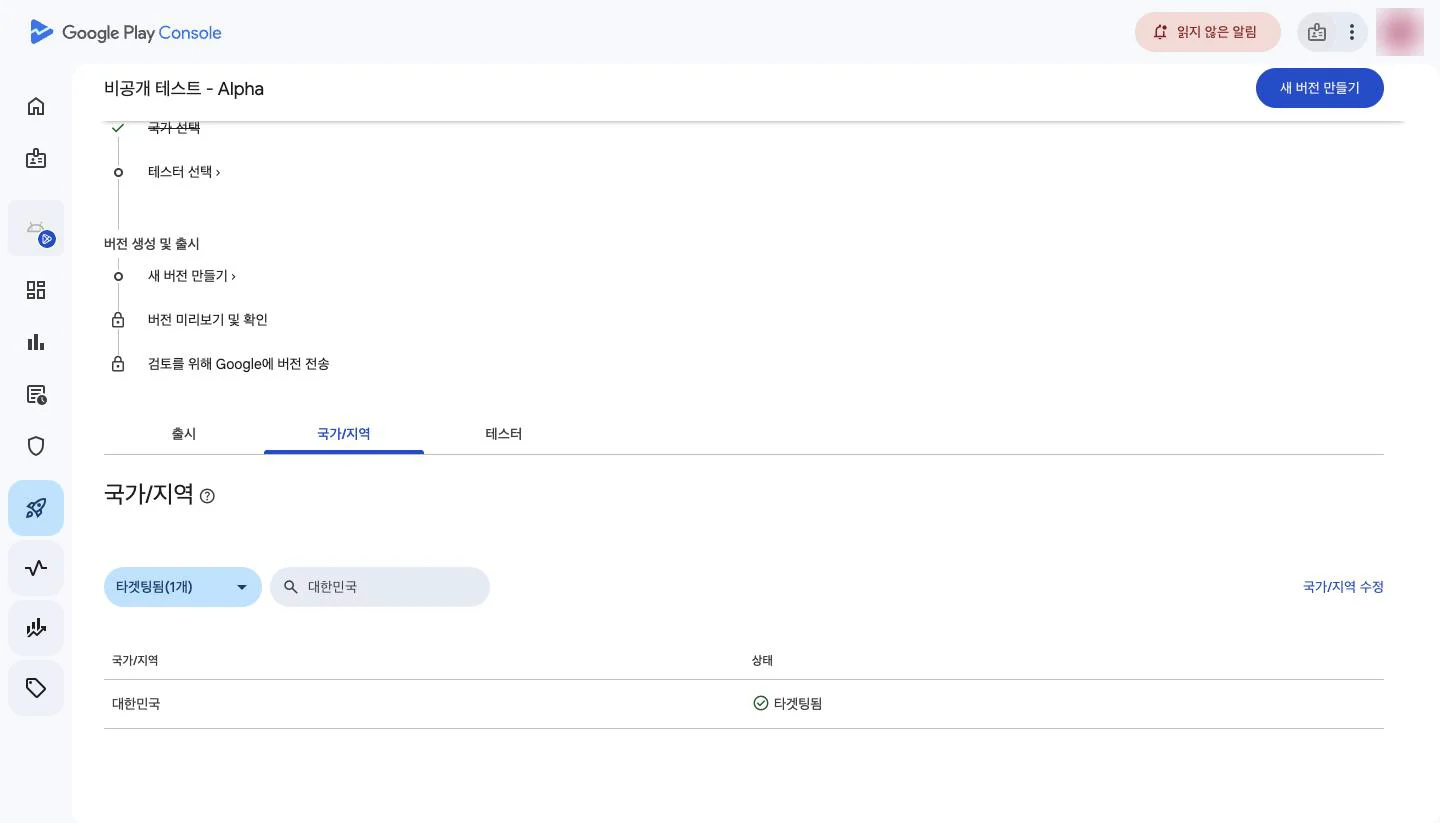
Follow the task list at the top of the track
The order is: select countries → select testers → create new release → preview → send for review. The steps below follow the same order.
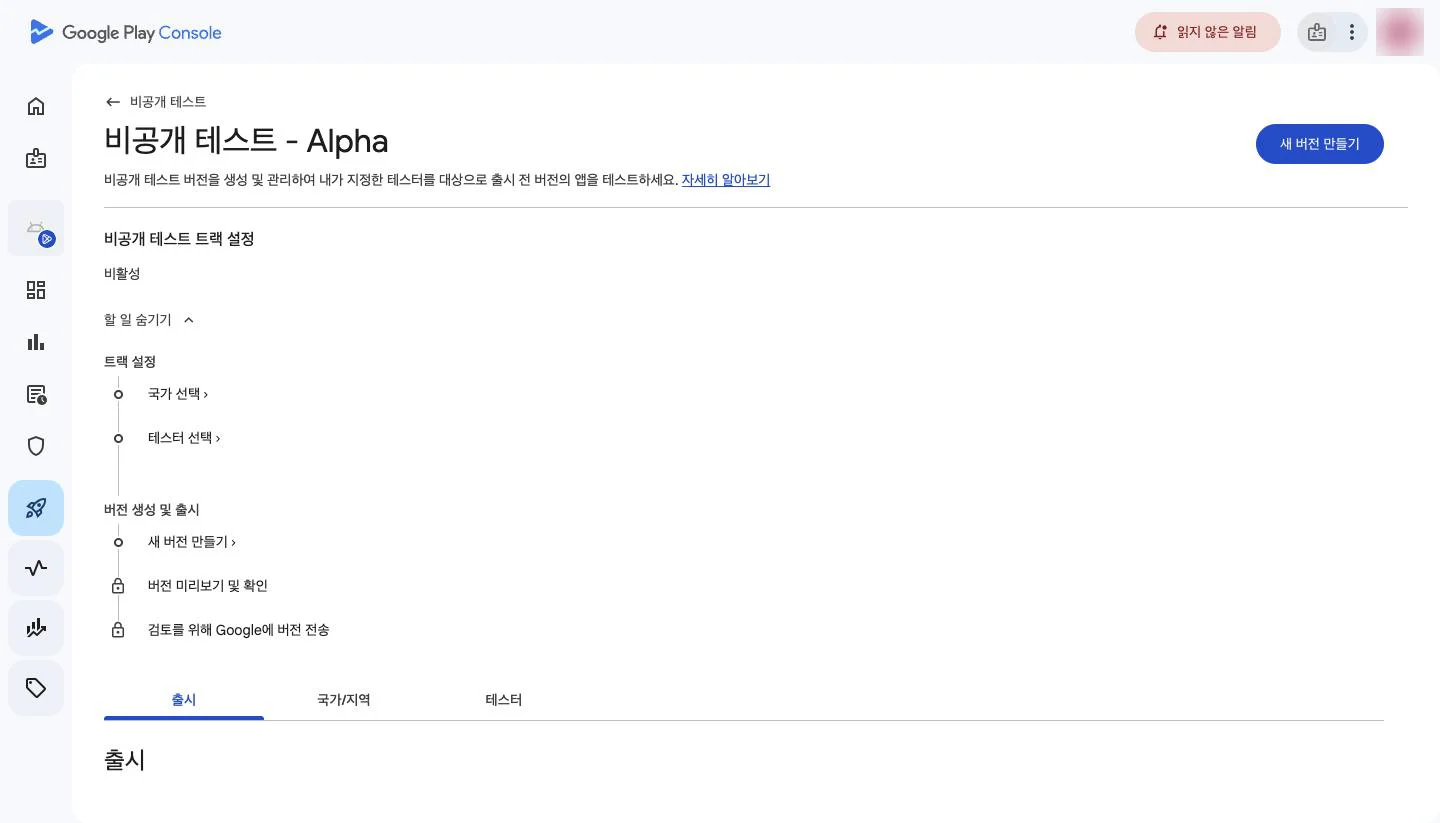
- 1Task list
- 1
Download the CSV from Doply's 'Testers' page
Open tester list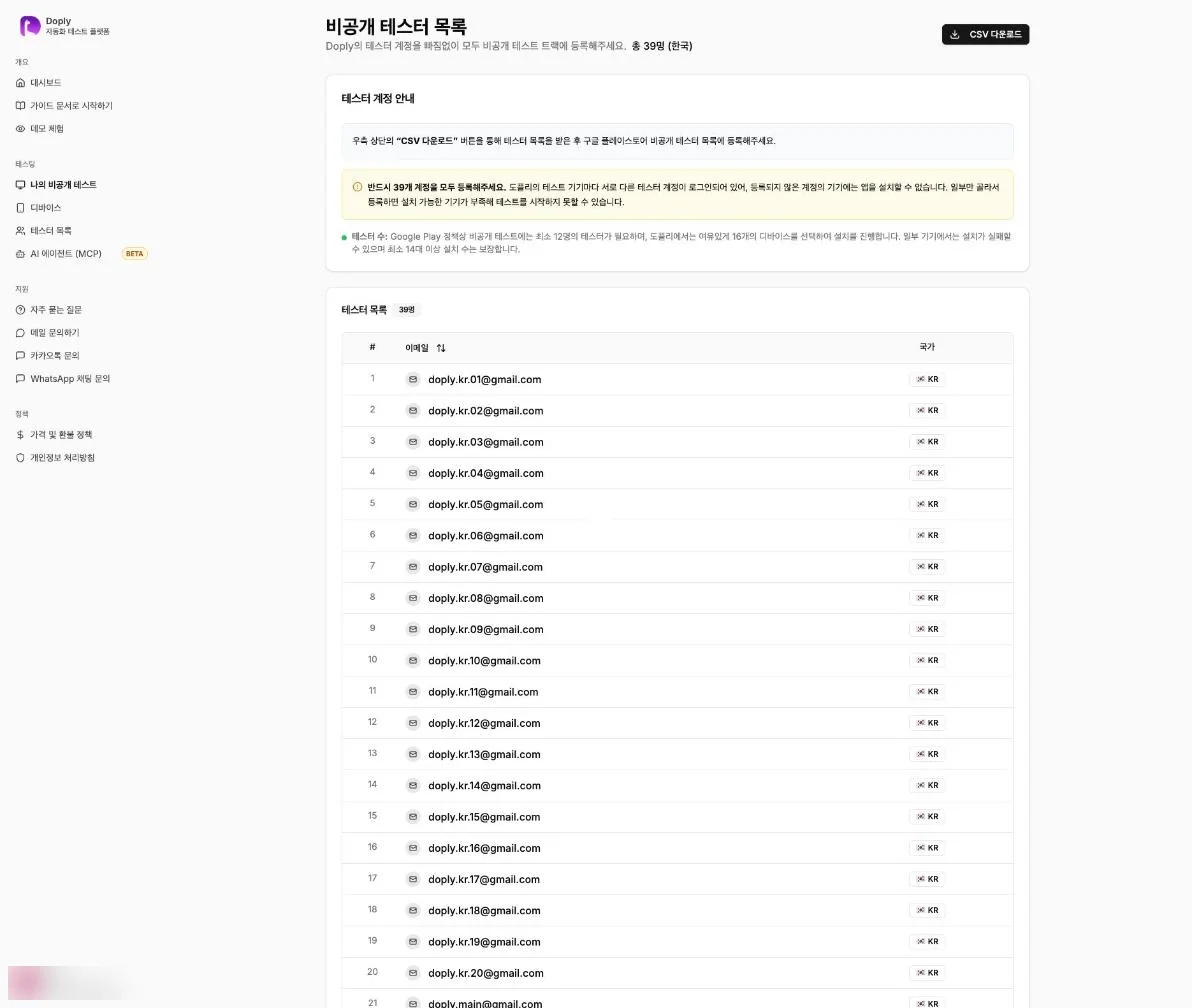
- 1Download CSV
Register every account on the list. Each test device is signed in with a different account, and the app won't install on devices whose account isn't registered. - 2
On the Play Console 'Testers' tab, click 'Create email list'
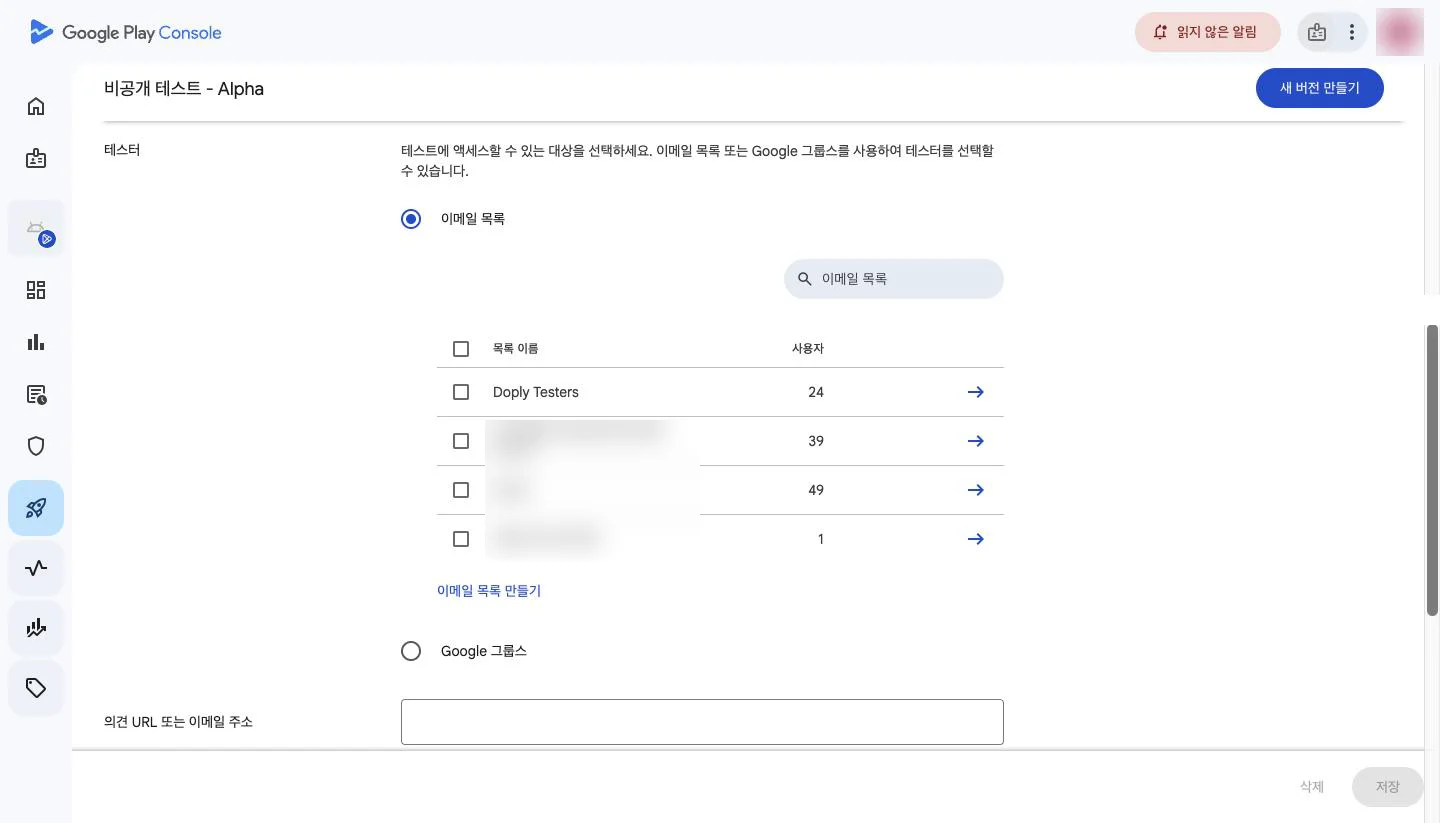
- 1Create email list
Even if you created a Doply list before, the tester accounts may have changed. Create a new list from the latest CSV or update the existing one. - 3
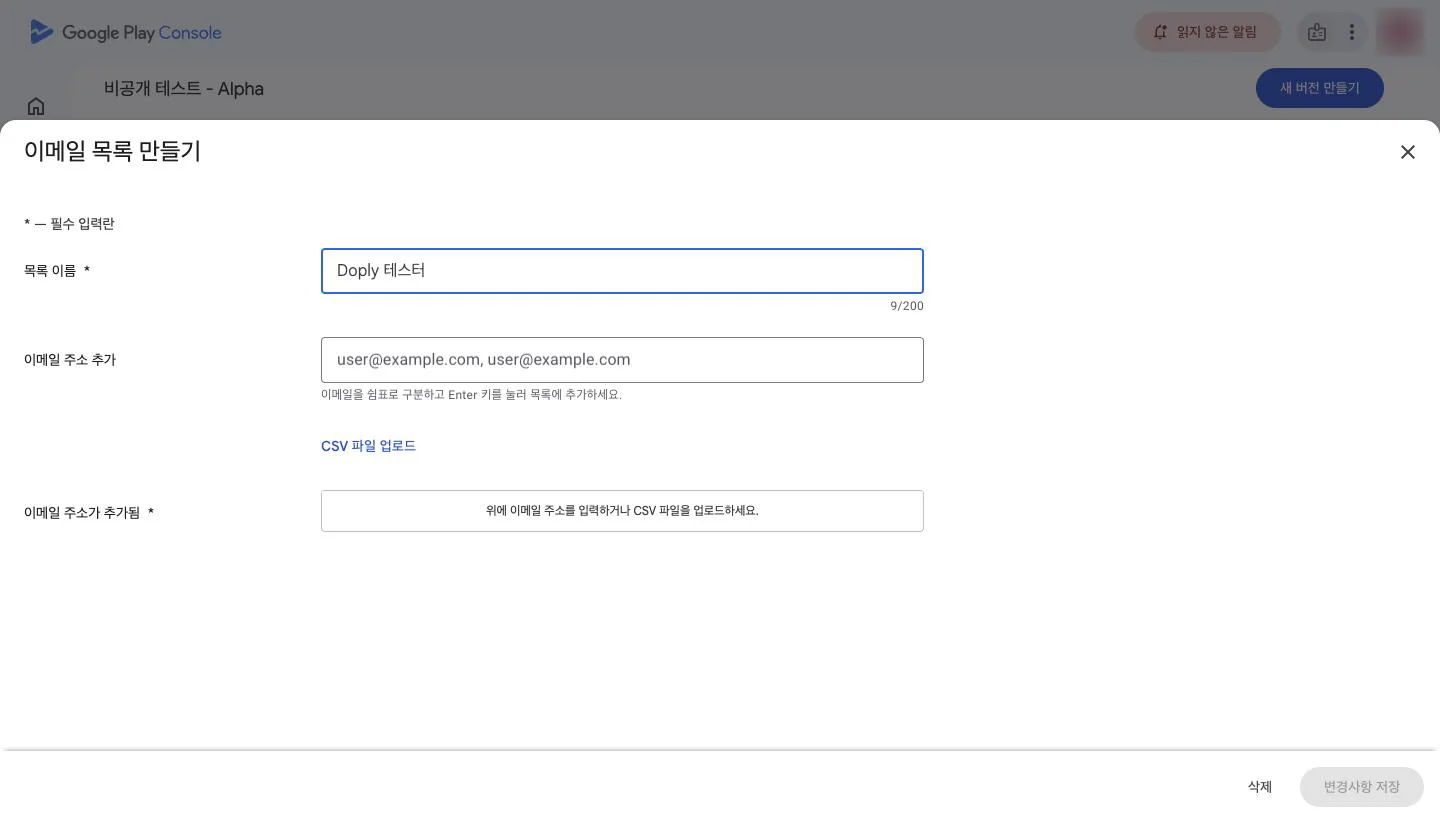
Enter a list name and click 'Upload CSV file'
 12
- 1List name (e.g. Doply testers)
- 2Upload CSV file
- 4
Click 'Upload' and choose the downloaded CSV
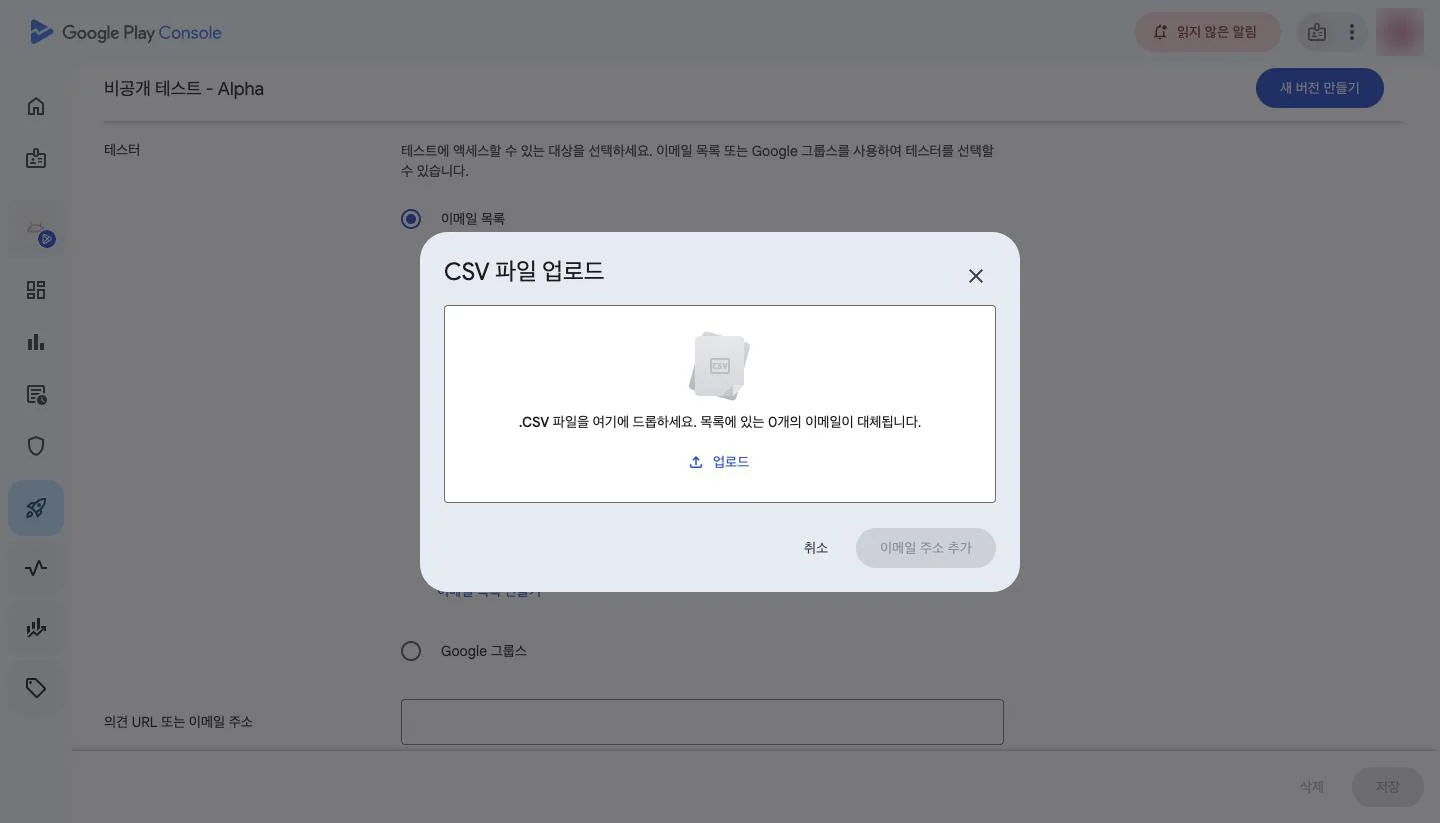
- 1Upload
- 5
Click 'Add email addresses'
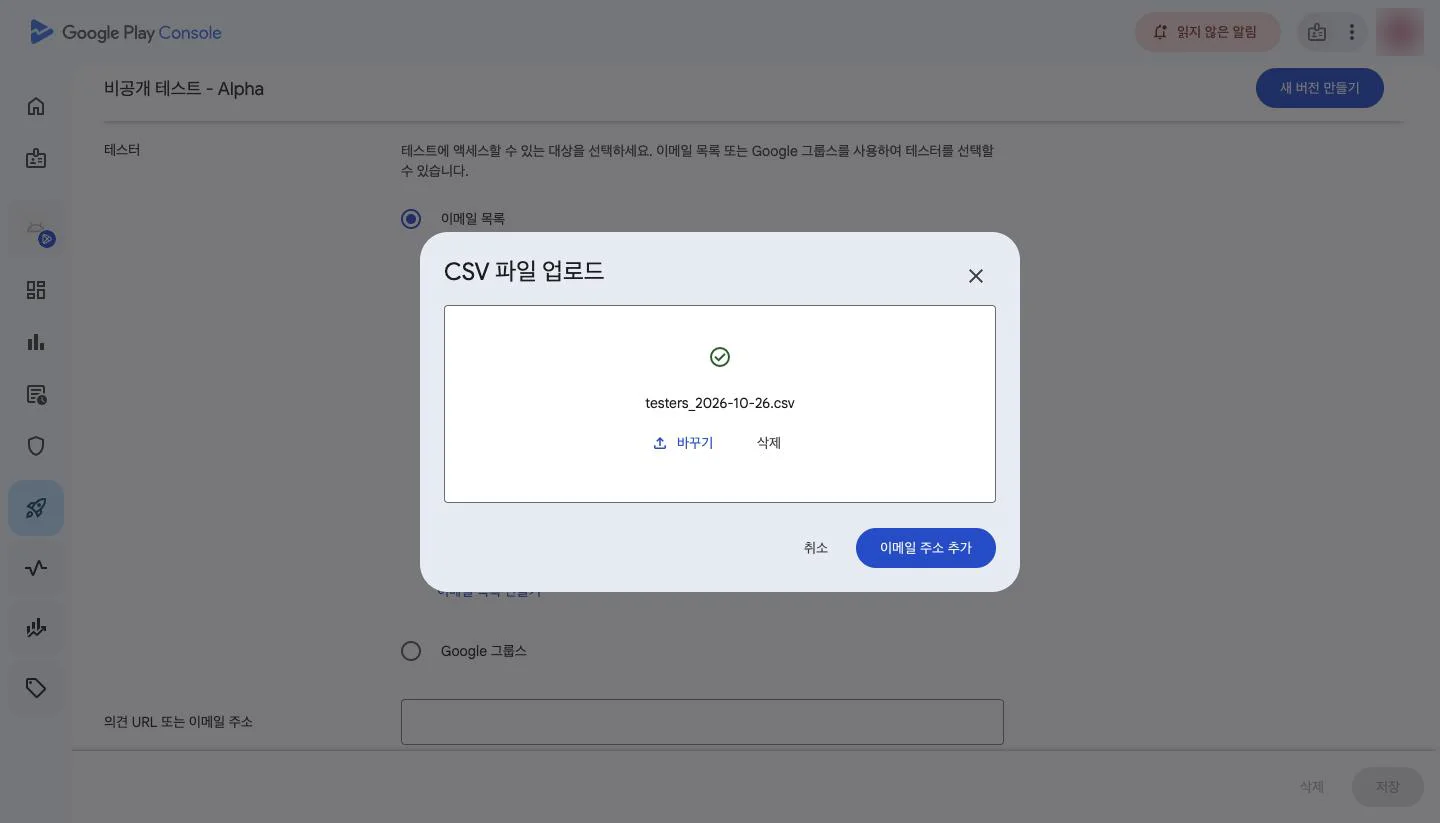
- 1Add email addresses
- 6
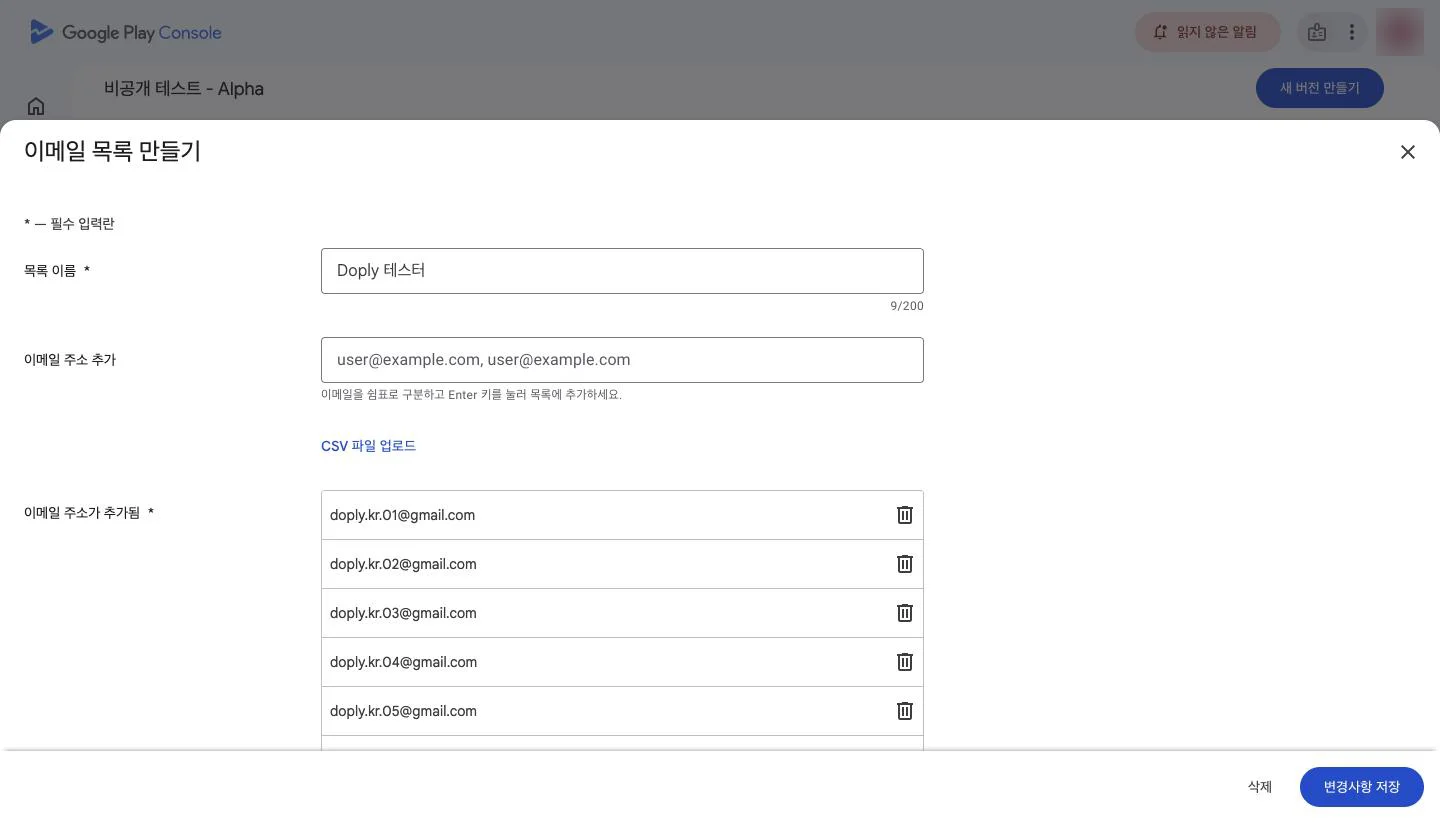
Check that the emails were added and click 'Save changes'
 12
- 1Added email addresses
- 2Save changes
- 7
Click 'Create' in the confirmation dialog
Email lists are shared by all apps in your developer account. For your next app, you only need to check this list.
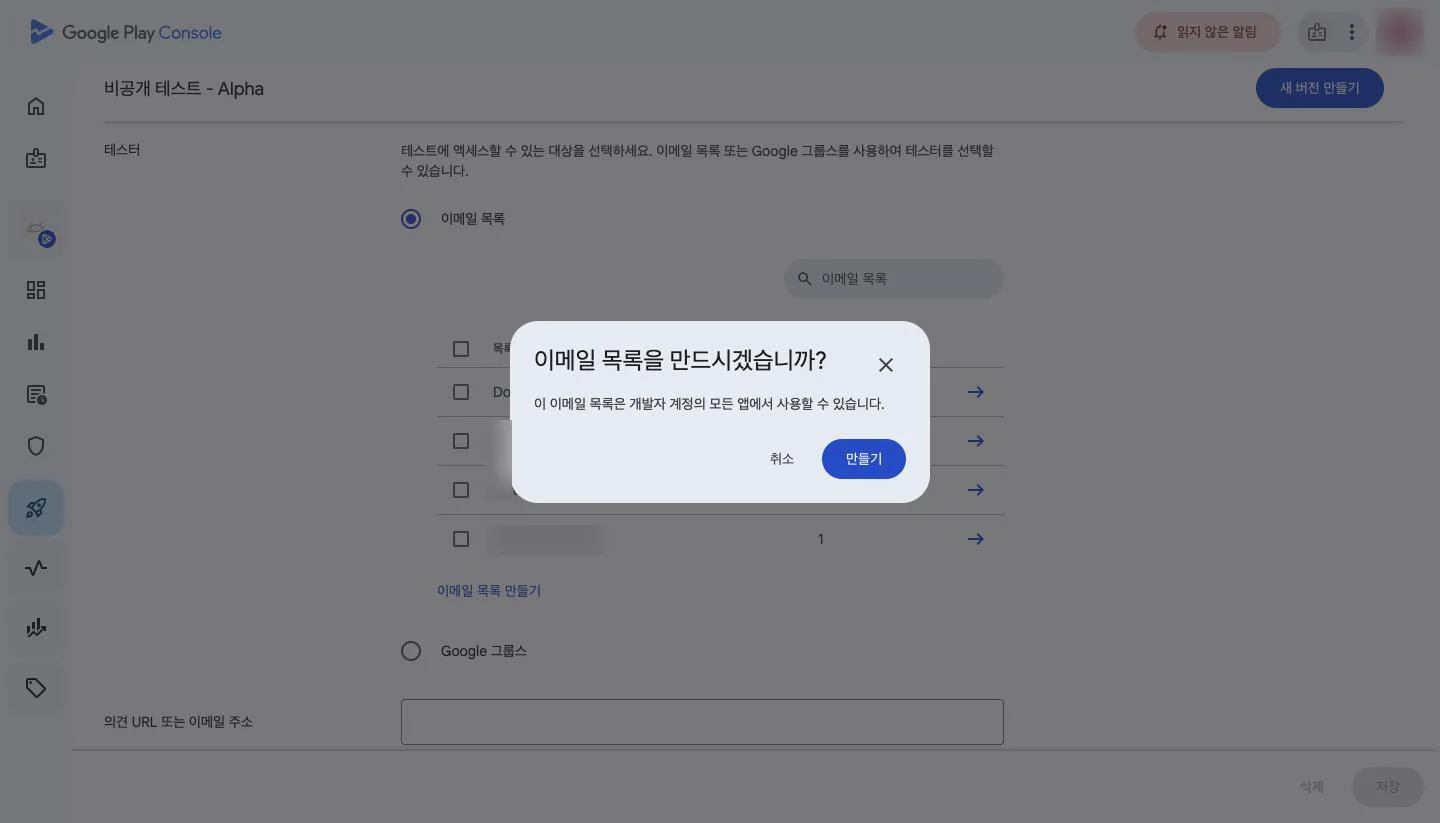
- 1Create
- 8
Make sure the new list is checked and click 'Save'
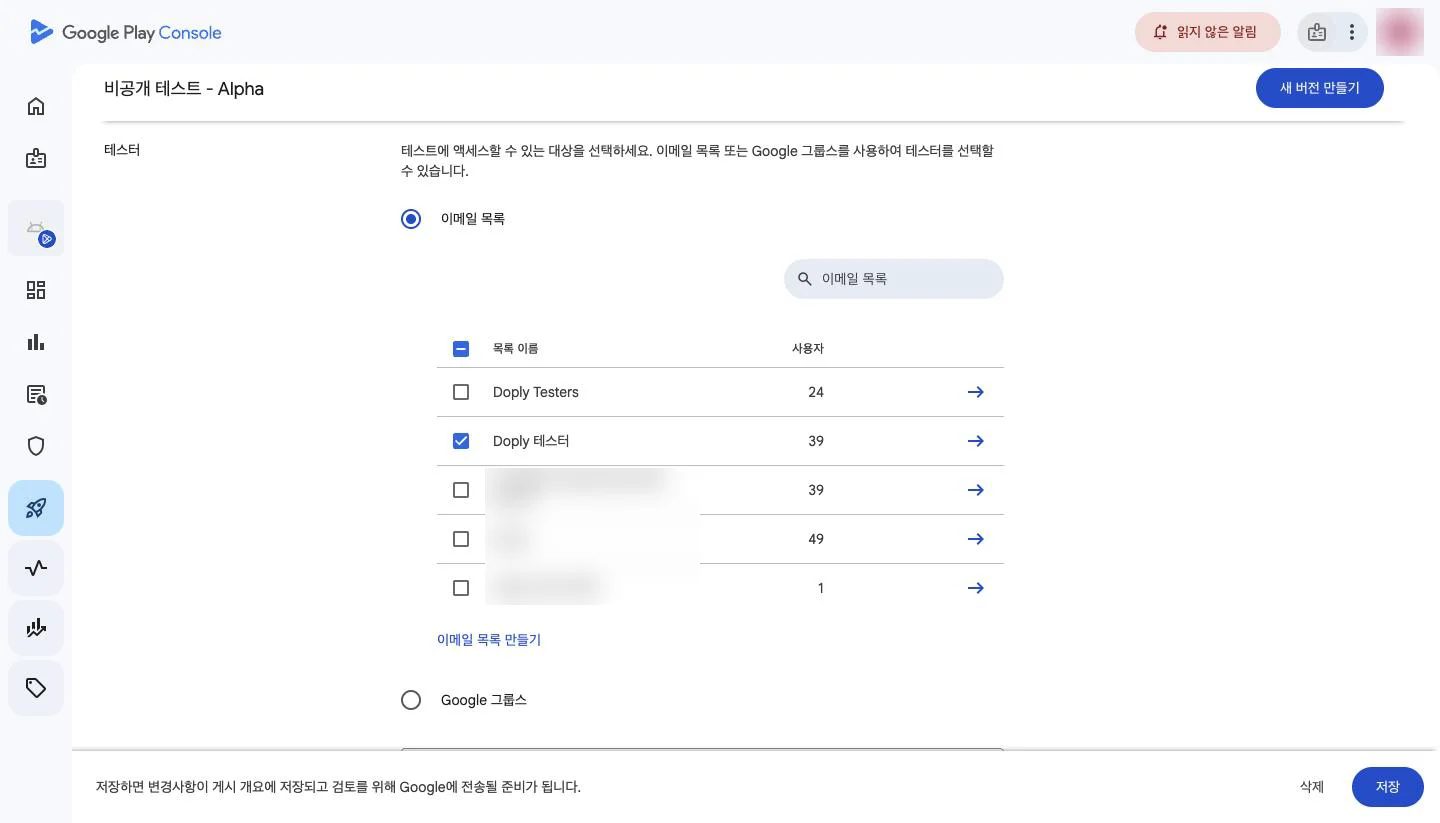 12
- 1New list (check the tester count matches Doply's list)
- 2Save
- 9
The join link appears after review
'Copy link' is disabled for now. It becomes active once your release passes review.
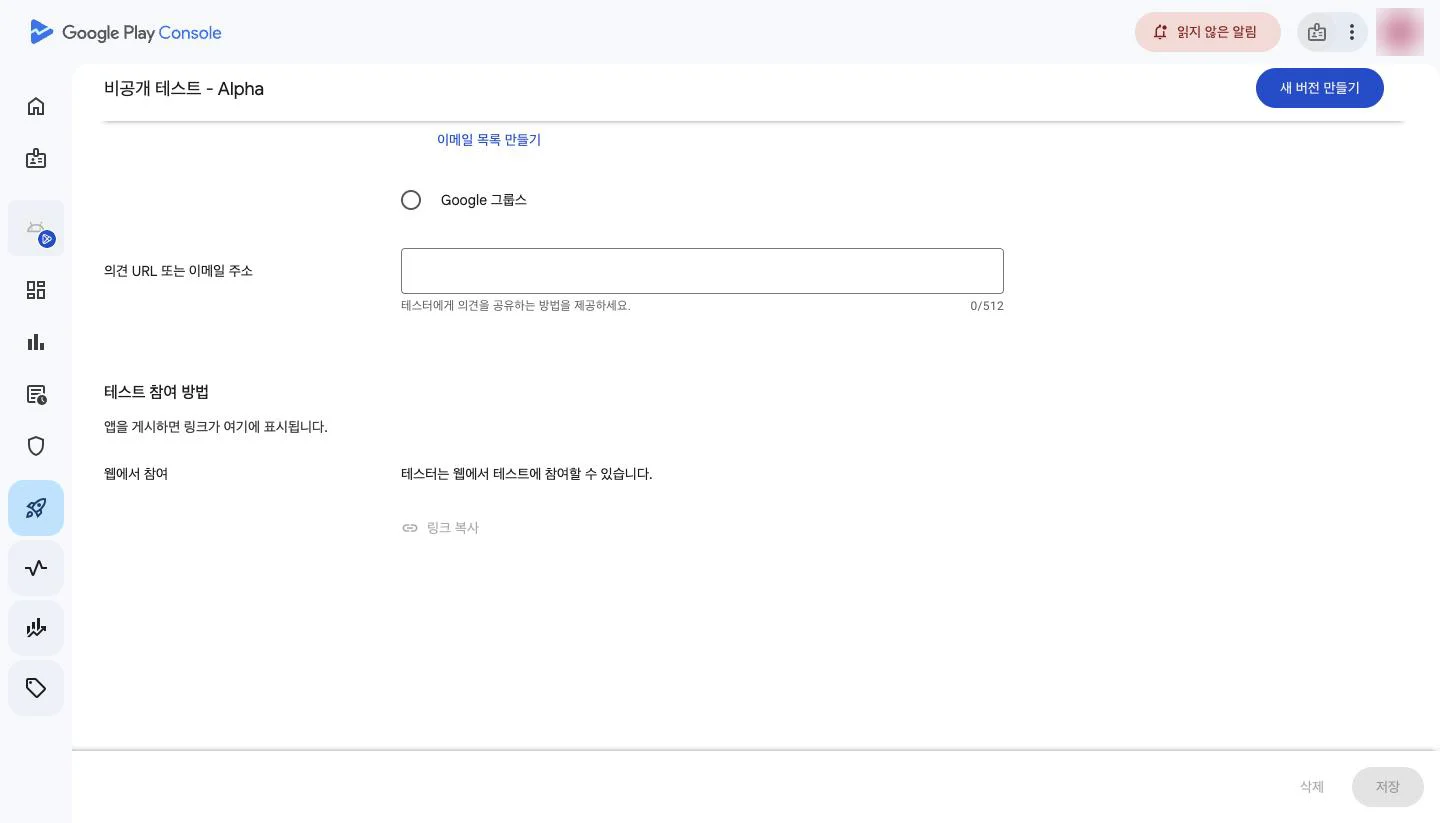
- 1Copy link (not active yet)
- 1
In Publishing overview, check that the tester change is listed and send the changes for review
Open 'Publishing overview' from the left menu. If you created a new release, it is listed there too.
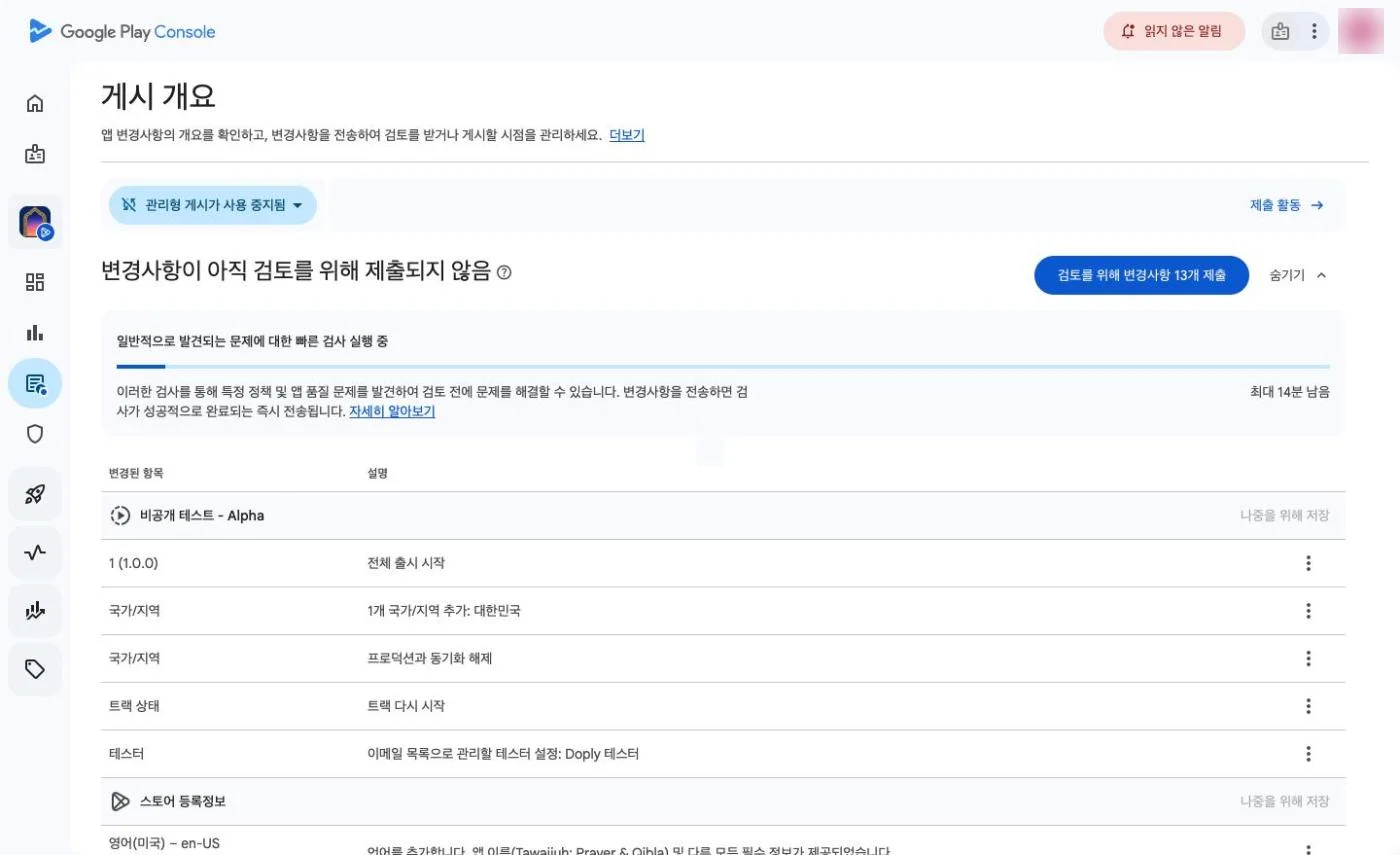 12
- 1Testers: email list set as testers
- 2Send changes for review
- 2
Wait until 'In review' disappears from the dashboard
Once the review is done and published, 'In review' disappears and 'Copy link' on the Testers tab becomes active.
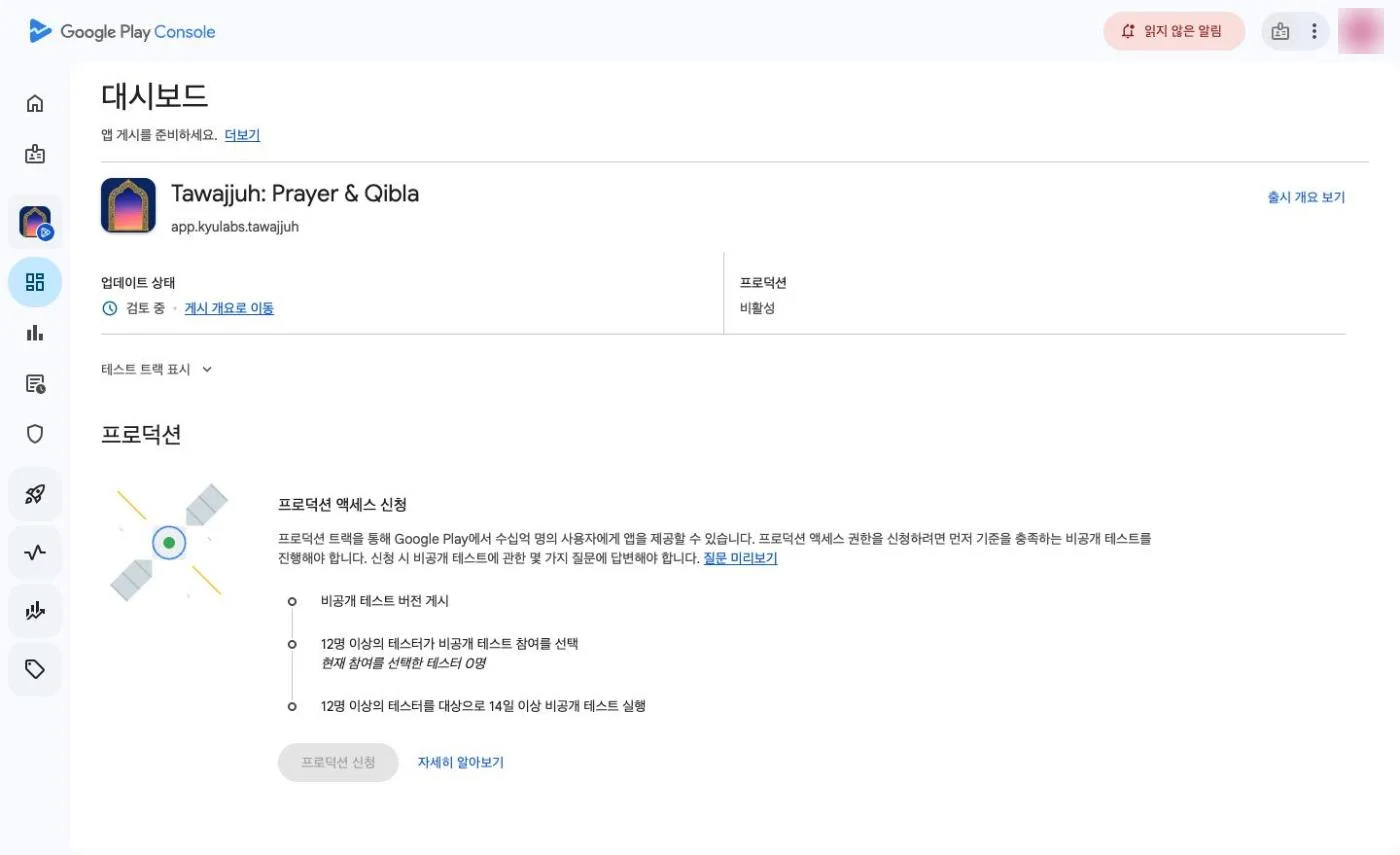
- 1Update status: In review
While the app is 'In review', it can't be installed even if you register it on Doply. Move on after it is published. - 3
When the review is done, 'In review' disappears from the dashboard
'Publish a closed testing release' in the production tasks also gets a check mark. Publishing overview shows only the last published date instead of changes in review.
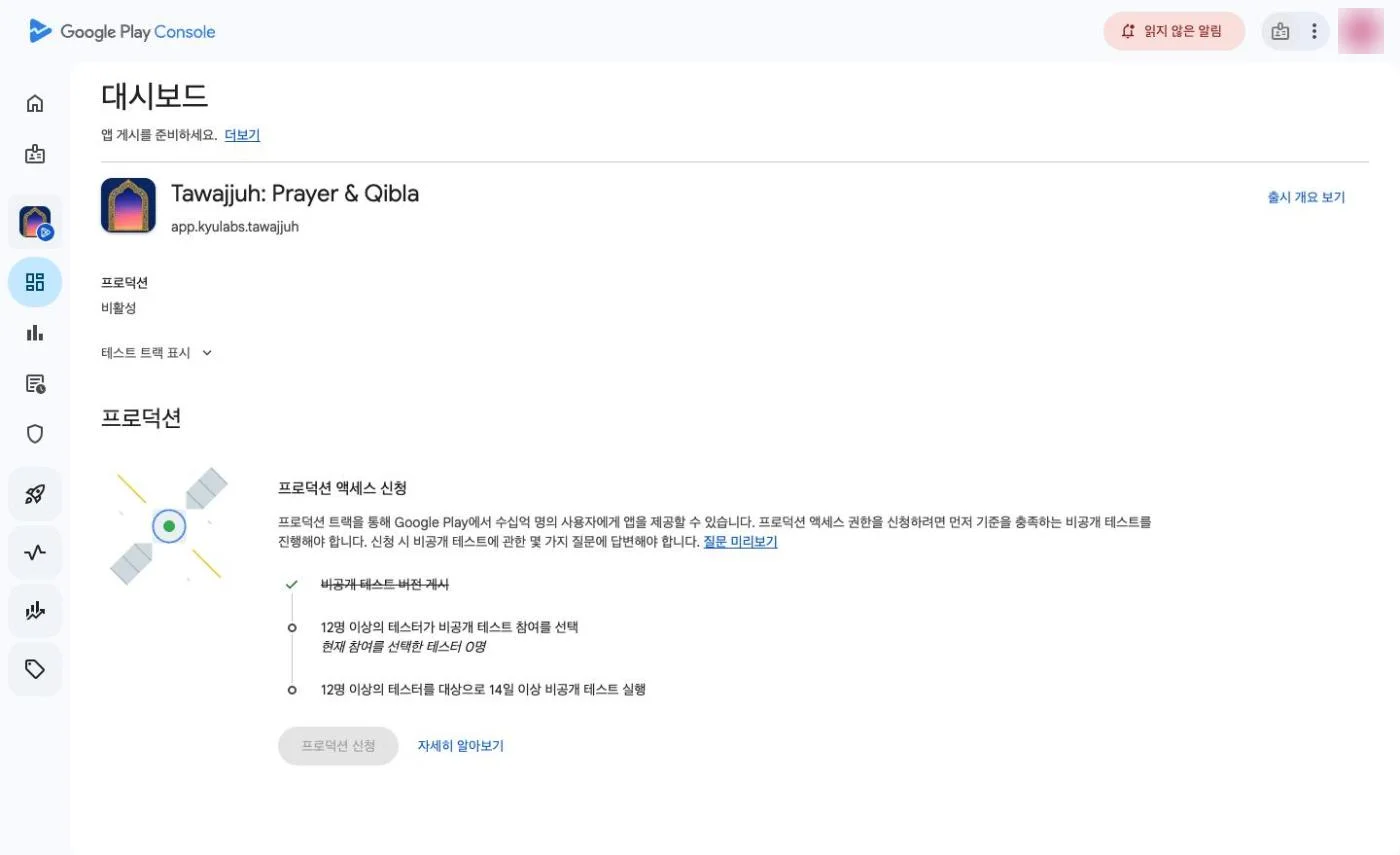 12
- 1Where 'Update status: In review' was (now gone)
- 2Closed testing release published ✓
- 4
Check that Publishing overview has no changes in review
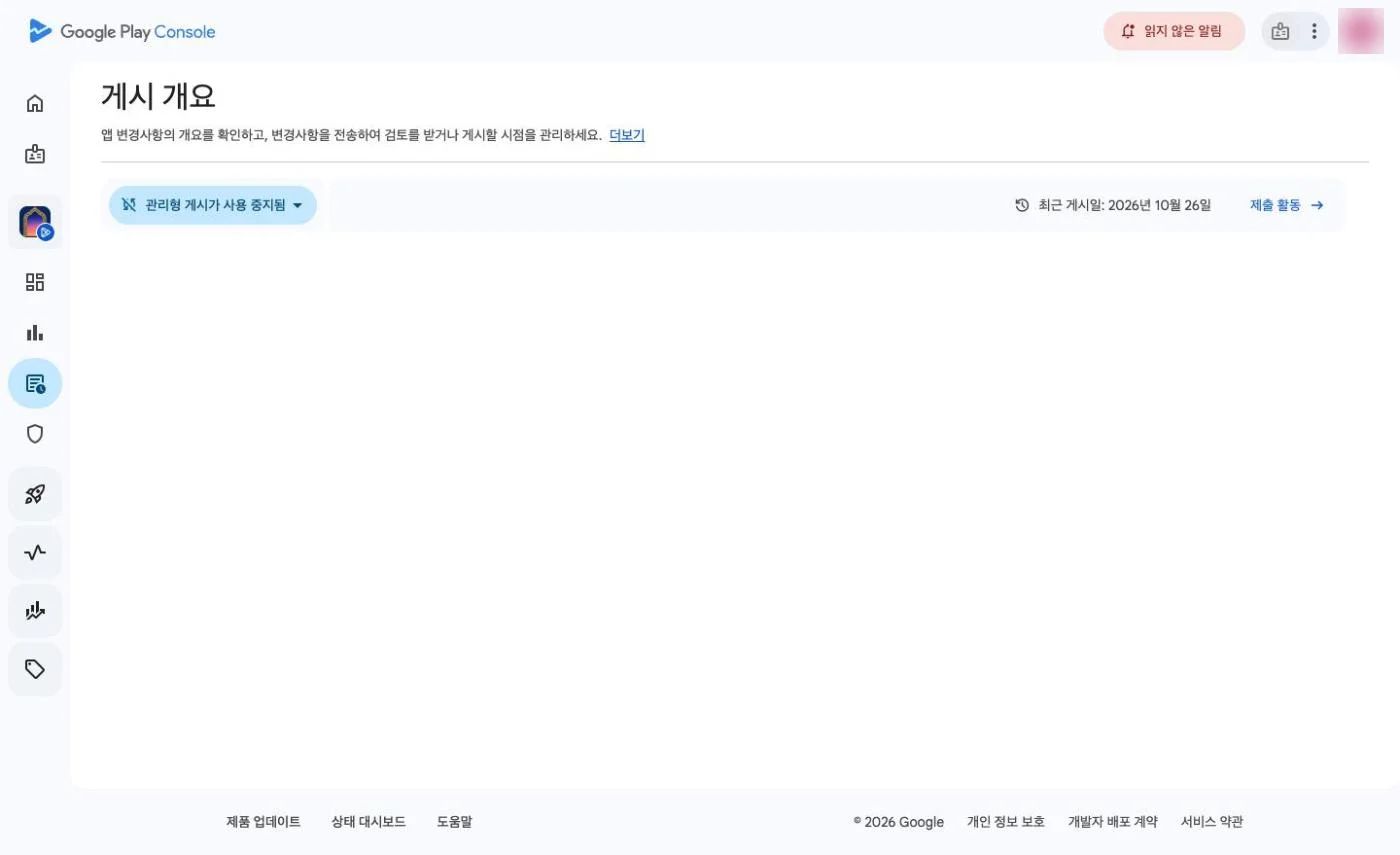
- 1Last published date
- 5
You're ready when 'Copy link' on the Testers tab is active
You can now register the app on Doply. Doply only needs the package name, so you don't have to copy the link.
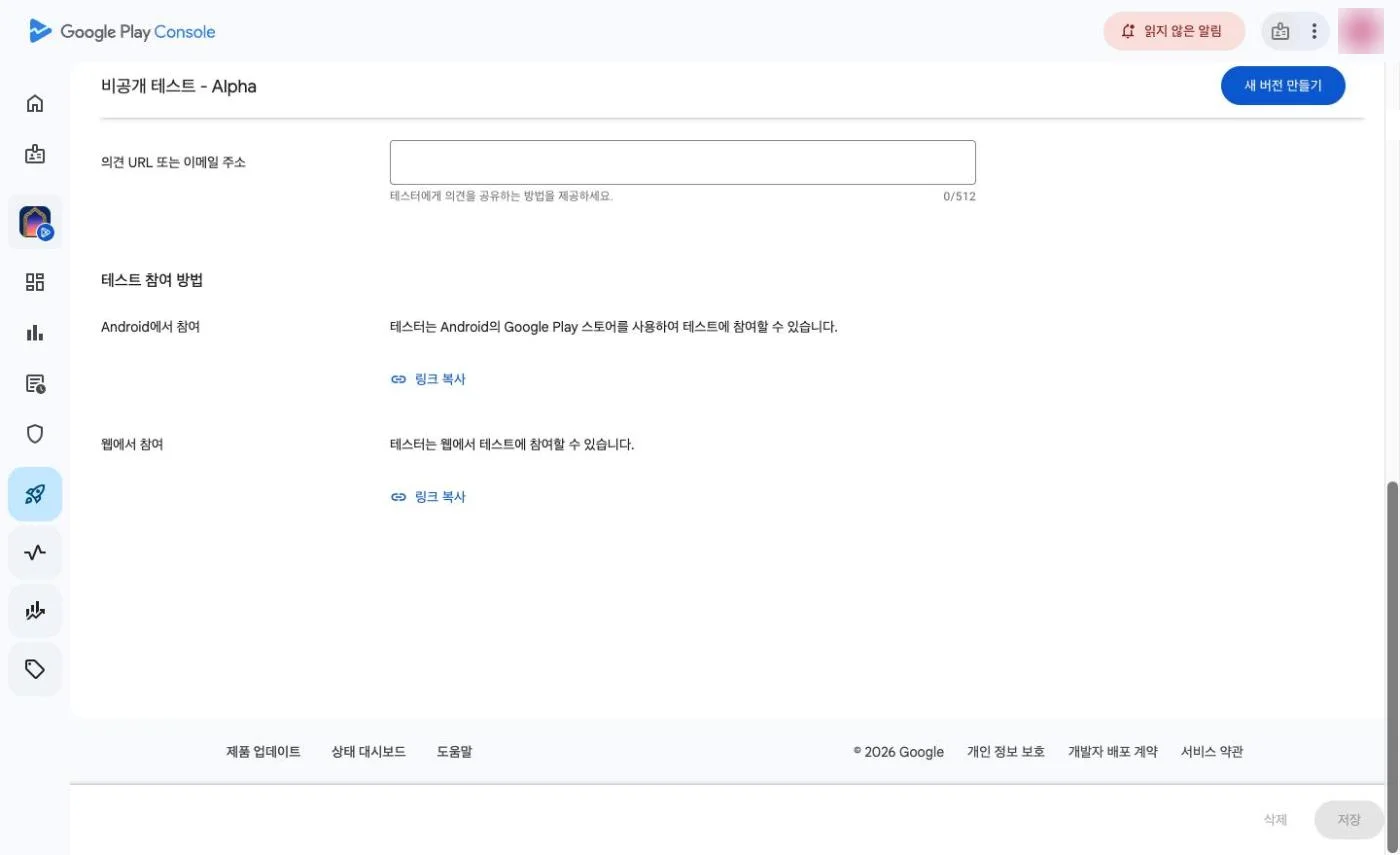 12
- 1Join on Android — Copy link
- 2Join on the web — Copy link
- 1
In 'My Closed Tests', click 'Register App'
Open My Closed Tests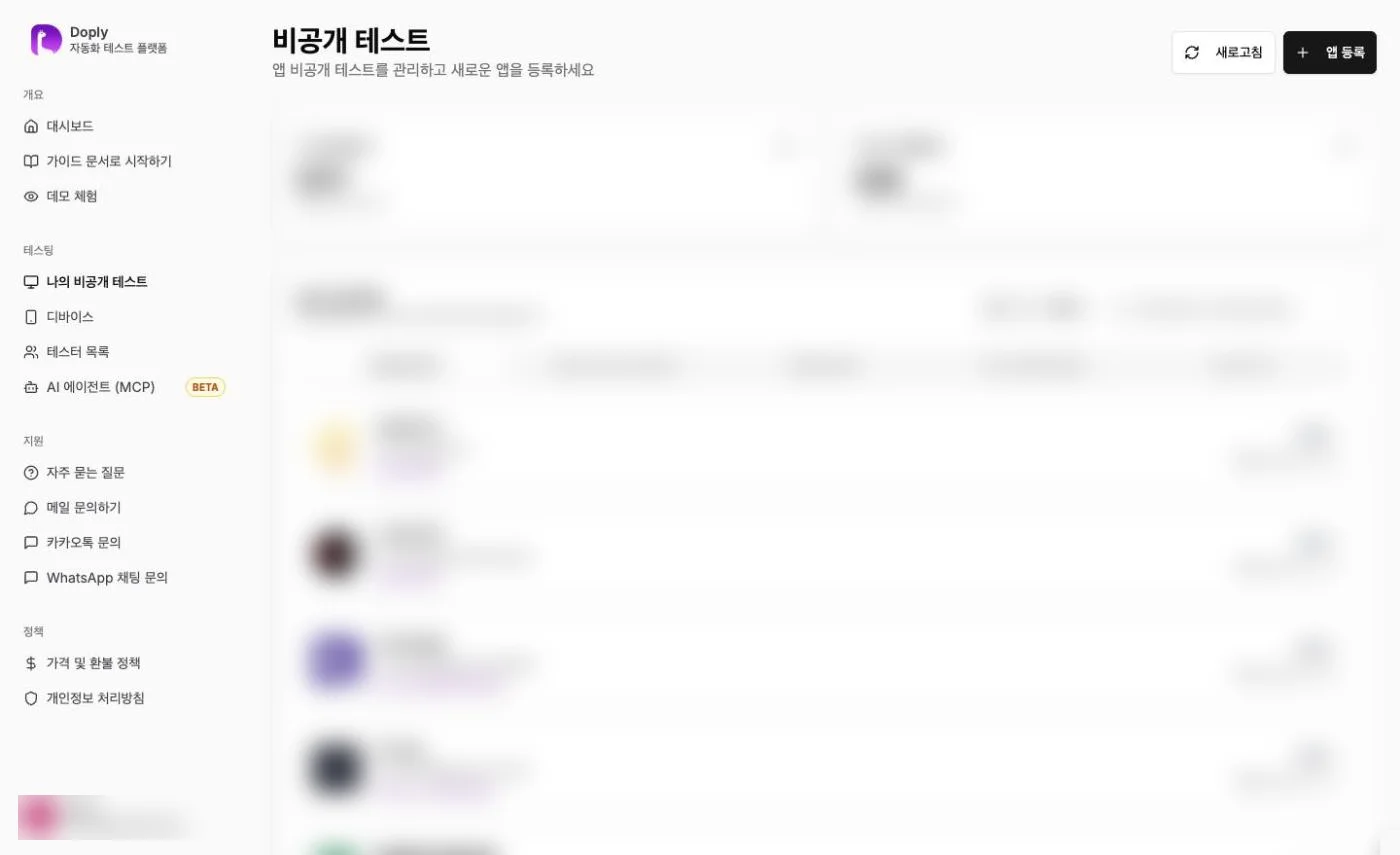
- 1Register App
- 2
Check all the items and enter the Play Store link or package name
A package name alone (e.g. com.example.app) is fine.
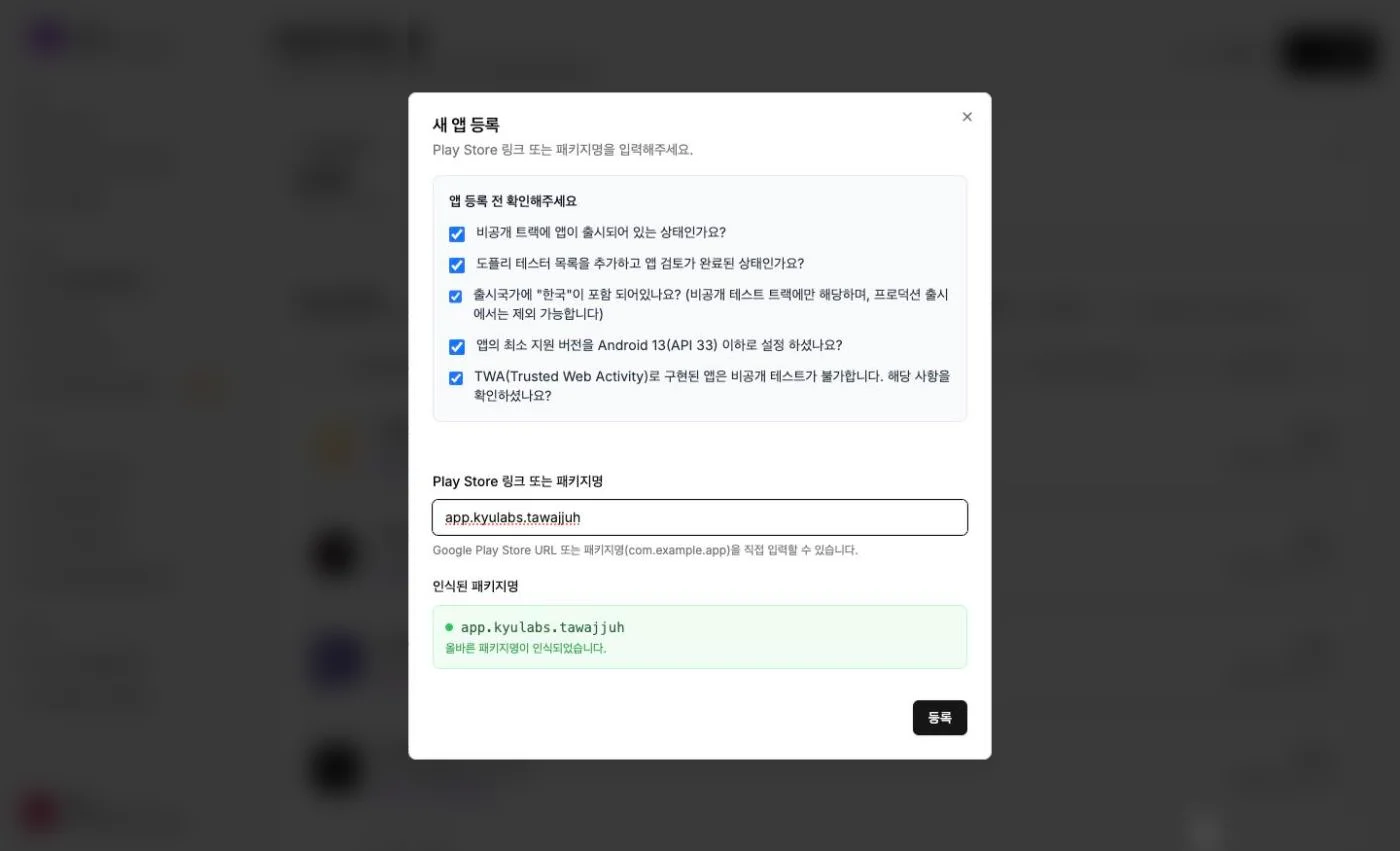 1234
- 1Check all 5 items — the input field opens only after all are checked
- 2Play Store link or package name
- 3Recognized package name
- 4Register
- 3
Check the compatibility result
Doply checks South Korea availability, minSdk, and whether the app is paid. You can use the service if 14 or more devices can install the app.
- 1
Click 'Install Request' on the app details page
The button appears while the app is 'Waiting to Install'. If you don't have a pass yet, a payment window opens. Once payment is confirmed, installation starts automatically.
- 2
When the status changes to 'Installing', wait for it to finish
The app is installed on the test devices one after another. The page refreshes automatically every 5 seconds.
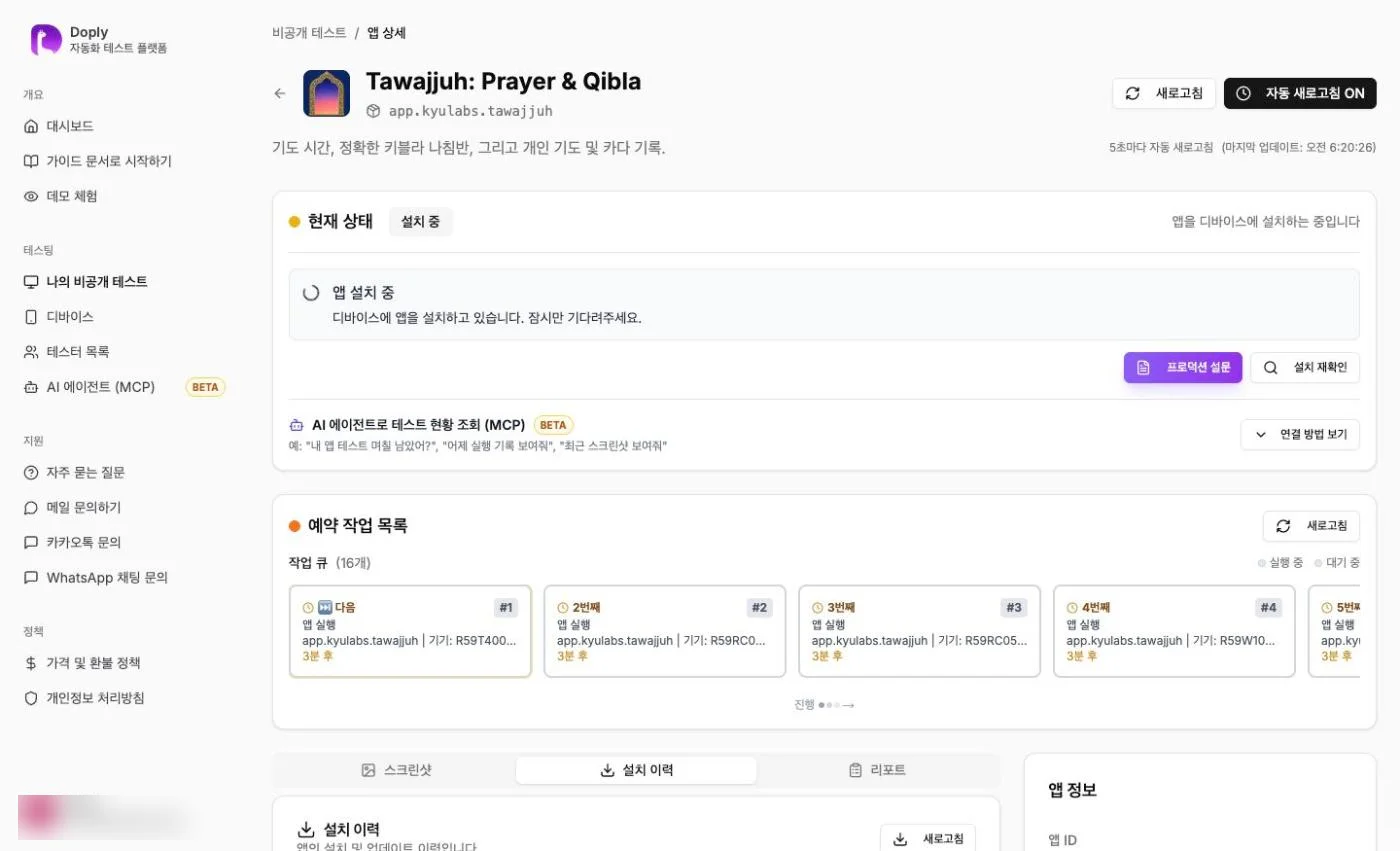 12
- 1Current status 'Installing'
- 2Install Recheck
Large apps take longer. If nothing changes after about 10 minutes, click 'Install Recheck'. - 3
Once it shows 'Testing in Progress', the test has started
Every day from 2 AM (KST), the app is launched on the test devices and a screenshot is taken 2 seconds after launch.
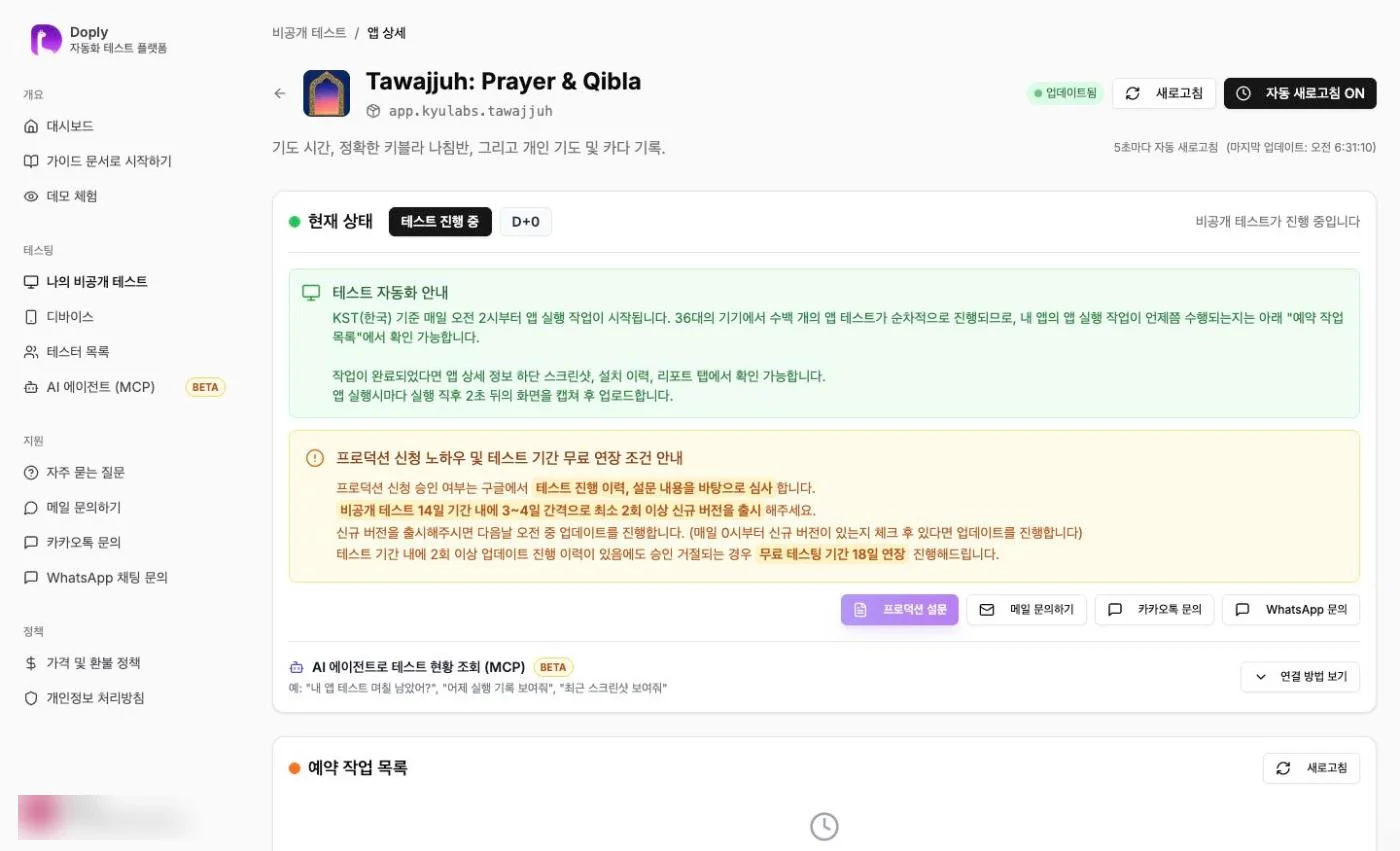 123
- 1Current status and test day
- 2Production tips and free extension conditions
- 3Production Survey — used when you apply for production
- 4
Check the installed devices and your production application date in the install history
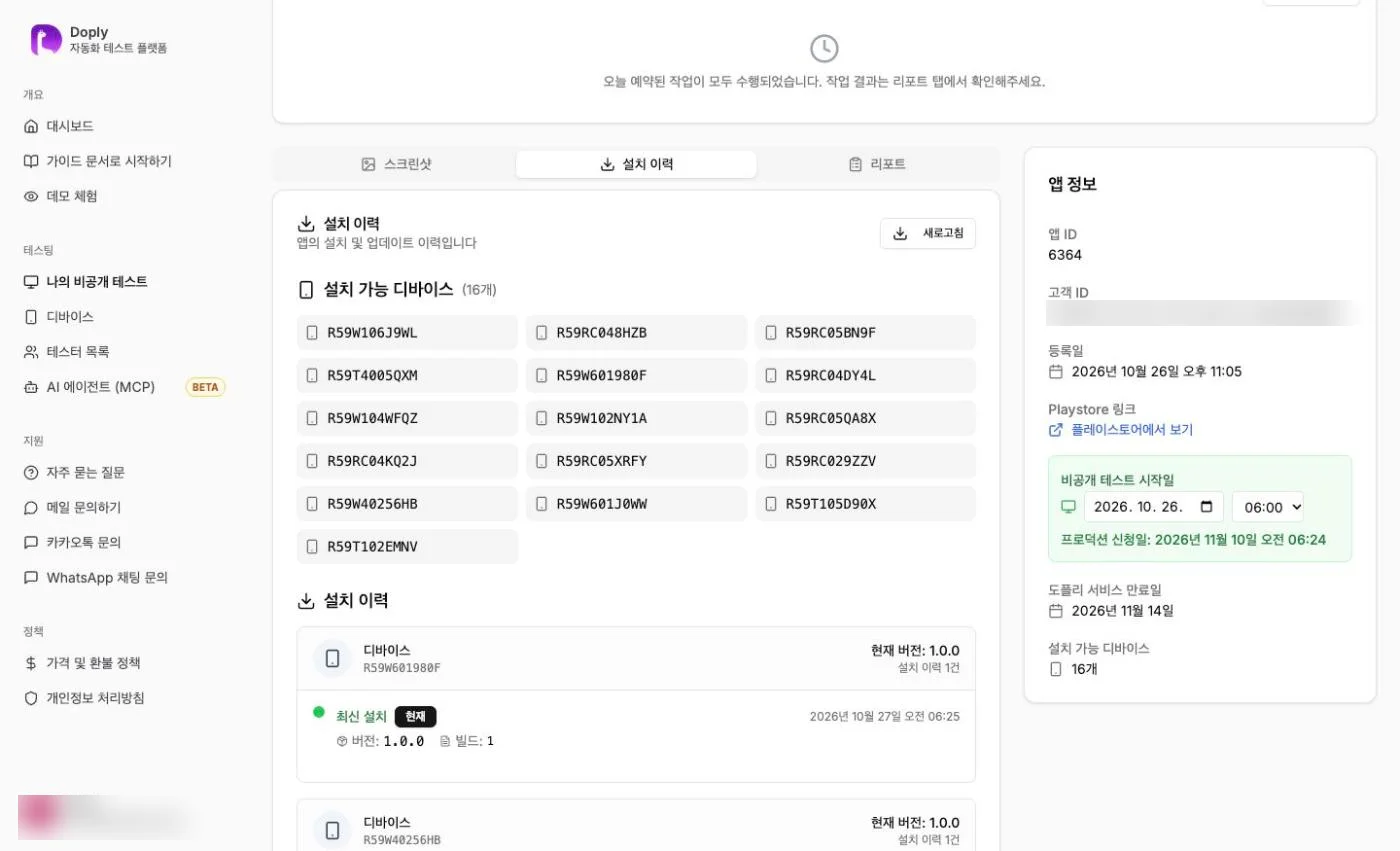 123
- 1Installable devices
- 2Installed version and time per device
- 3Closed test start date and production application date
- 5
Check run history and installed devices in the report
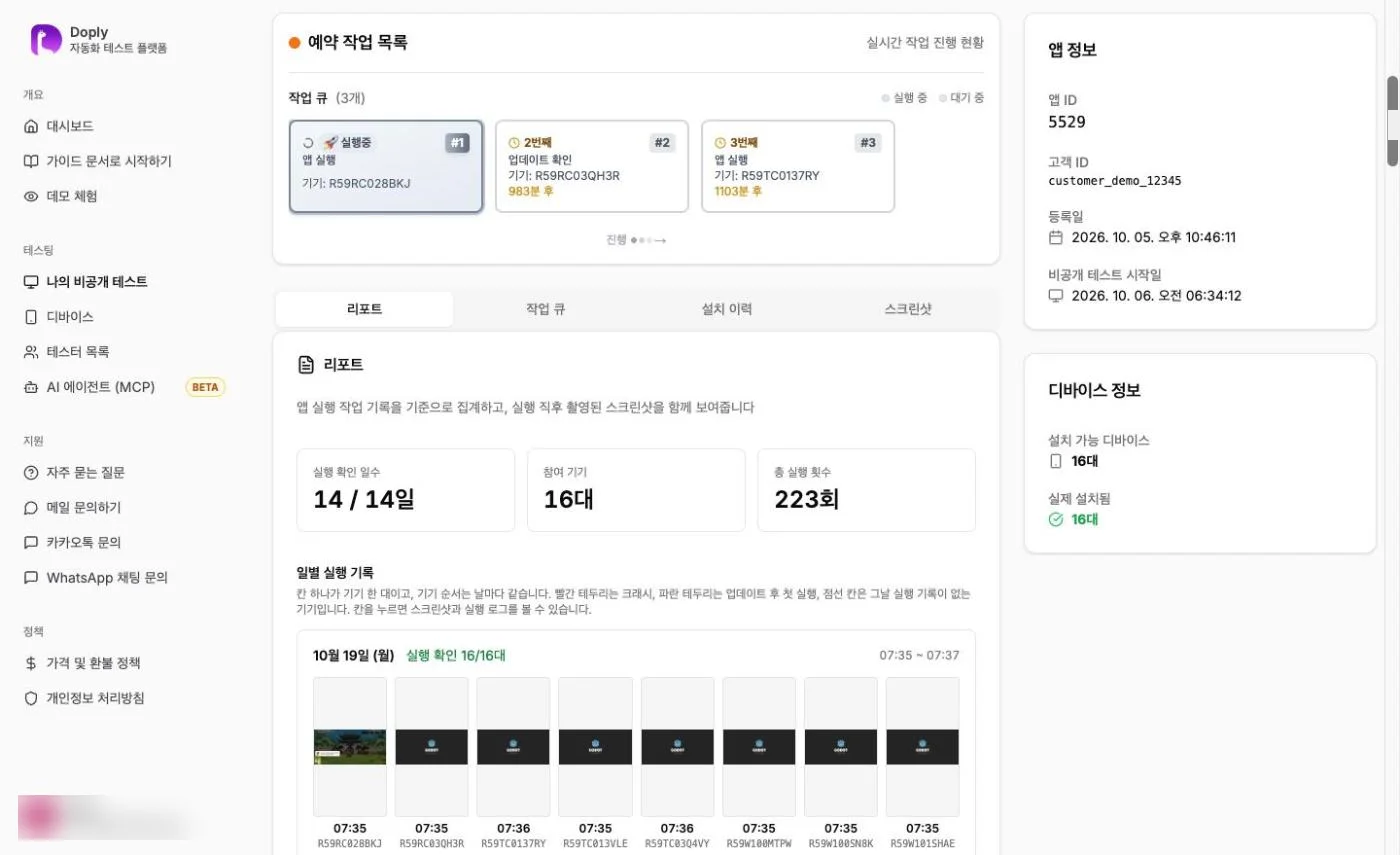 12
- 1Days with runs · Devices · Total runs
- 2Devices actually installed
- 6
Update at least twice during the test
When you publish a new version to the closed testing track, Doply checks for it every day at midnight (KST) and updates the test devices. We recommend updating every 2–3 days. Once applied, the report shows 'first run of new version'.
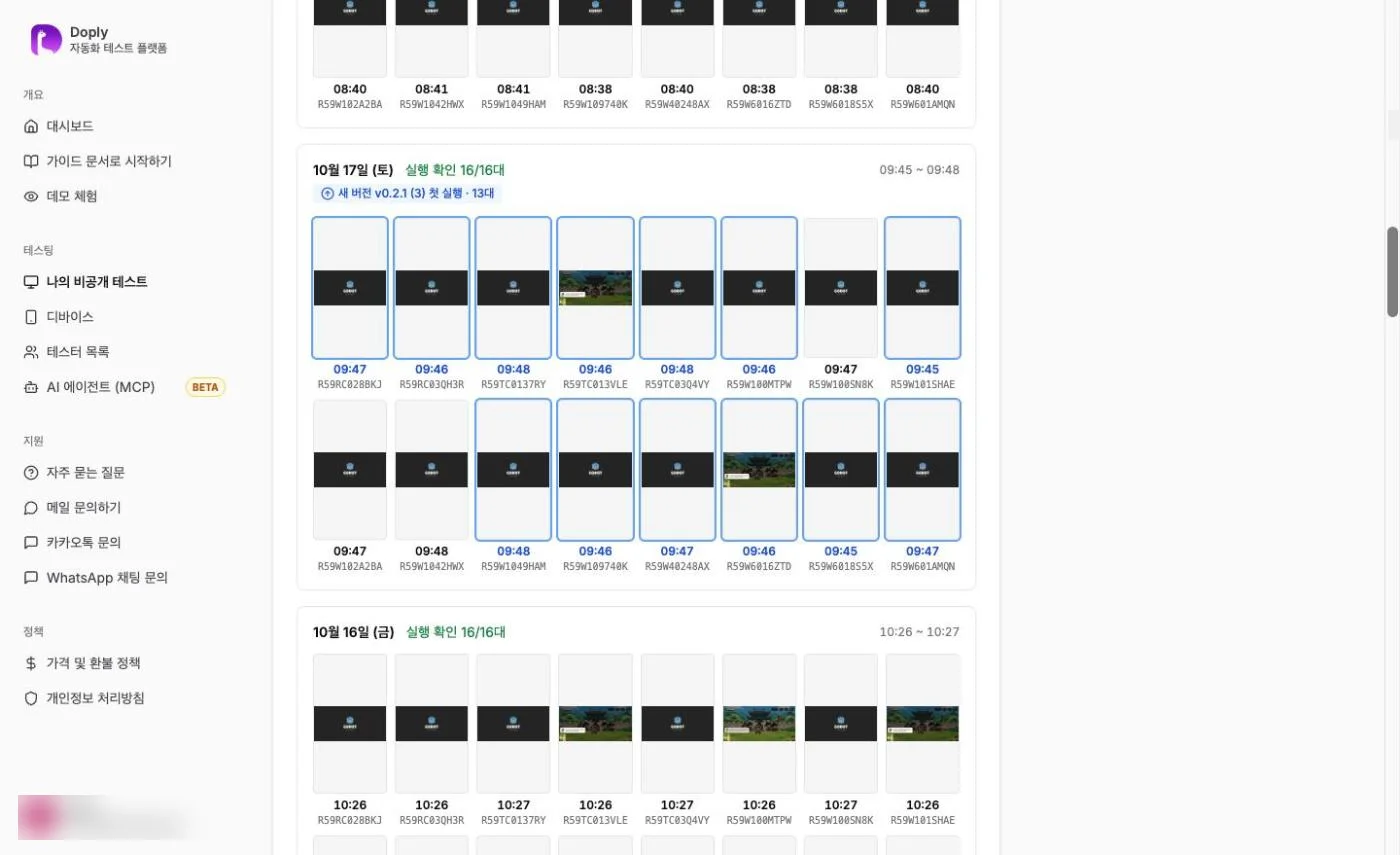
- 1First run of new version
Without updates, your production application may be rejected.
Google requirement
12+ testers, 14 days
Doply keeps the app installed
18 days
- 1
When all conditions on the dashboard are checked, click 'Apply for production'
The button stays disabled until 14 days have passed.
12- 1Conditions (published · 12+ testers opted in · 14 days)
- 2Apply for production
- 2
Fill in the questionnaire using Doply's 'Production Survey' answers
The 'Production Survey' on the app details page shows answers tailored to your app.