
Doply Service Usage Guide
Activate Internal Testing Track and Publish Internal Test App
The internal testing track must be activated in Play Store Console and the internal test app must be published.
Check App Release Version (Target SDK, Min SDK)
Doply's test devices have Android 13 and 14 installed. To install the app on test devices, please set minSdk to Android 13 (API 33) or below. Set targetSdk to 36 or 37.
You can configure this in one of the following files:
- • build.gradle (Module: app) -
defaultConfig { minSdk 33; targetSdk 36 } - • AndroidManifest.xml -
<uses-sdk android:minSdkVersion="33" android:targetSdkVersion="36" />
Check Release Countries
Test accounts are Korean nationals. Please include "South Korea (Republic of Korea)" in the release countries for app installation.
This applies to the closed testing track only — you can exclude South Korea from your production track.
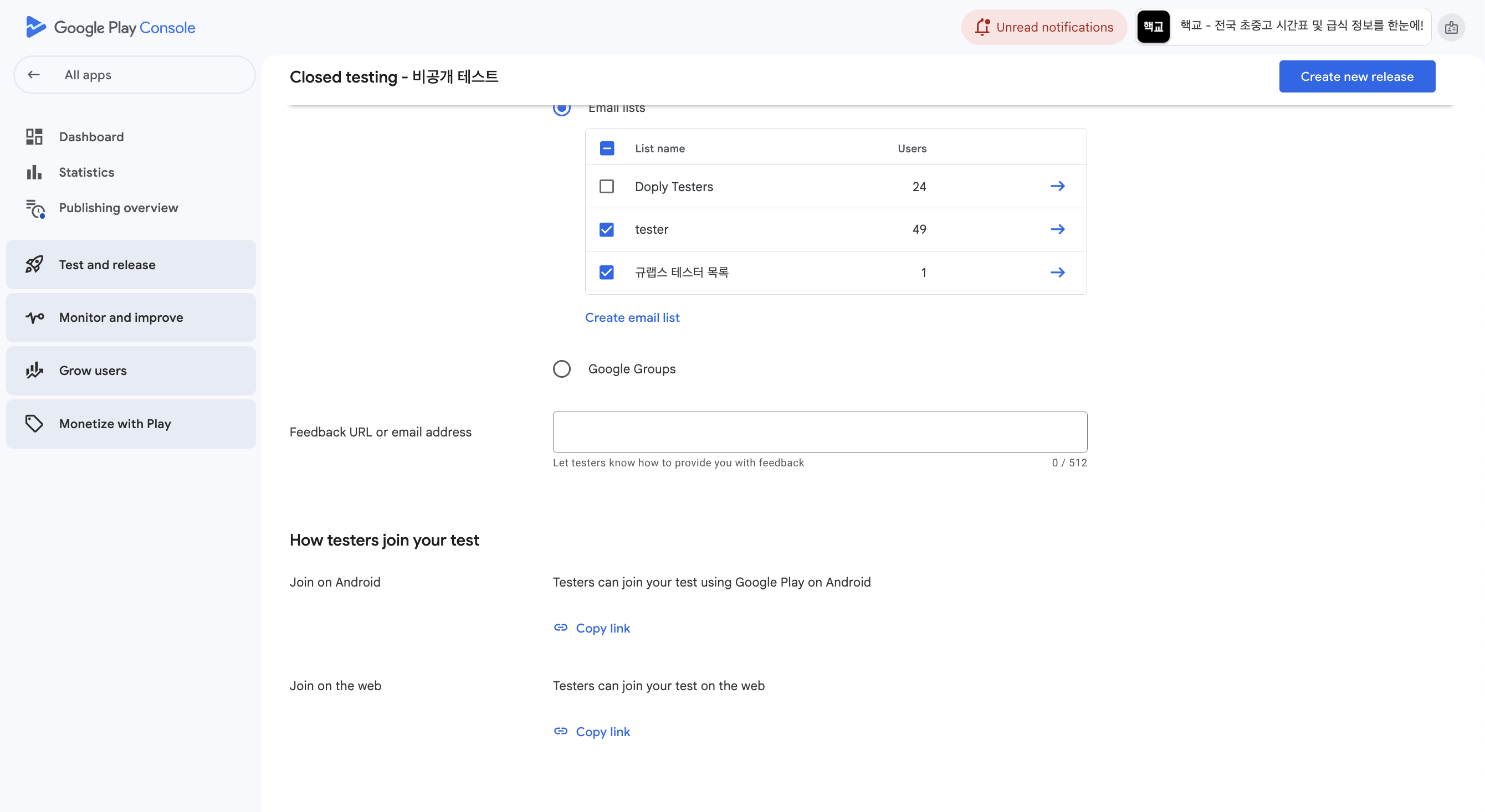
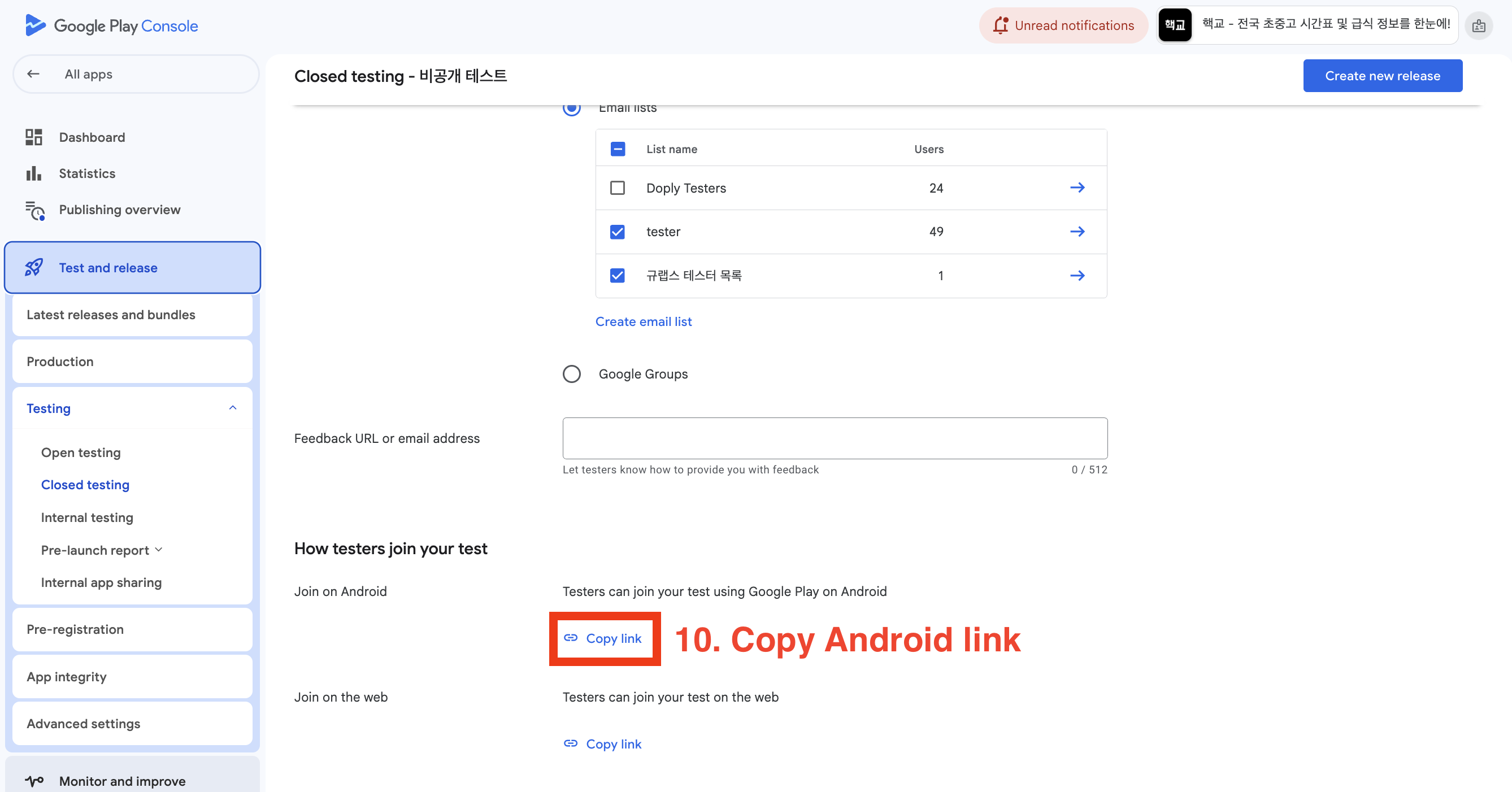
Verify Internal Testers Addition
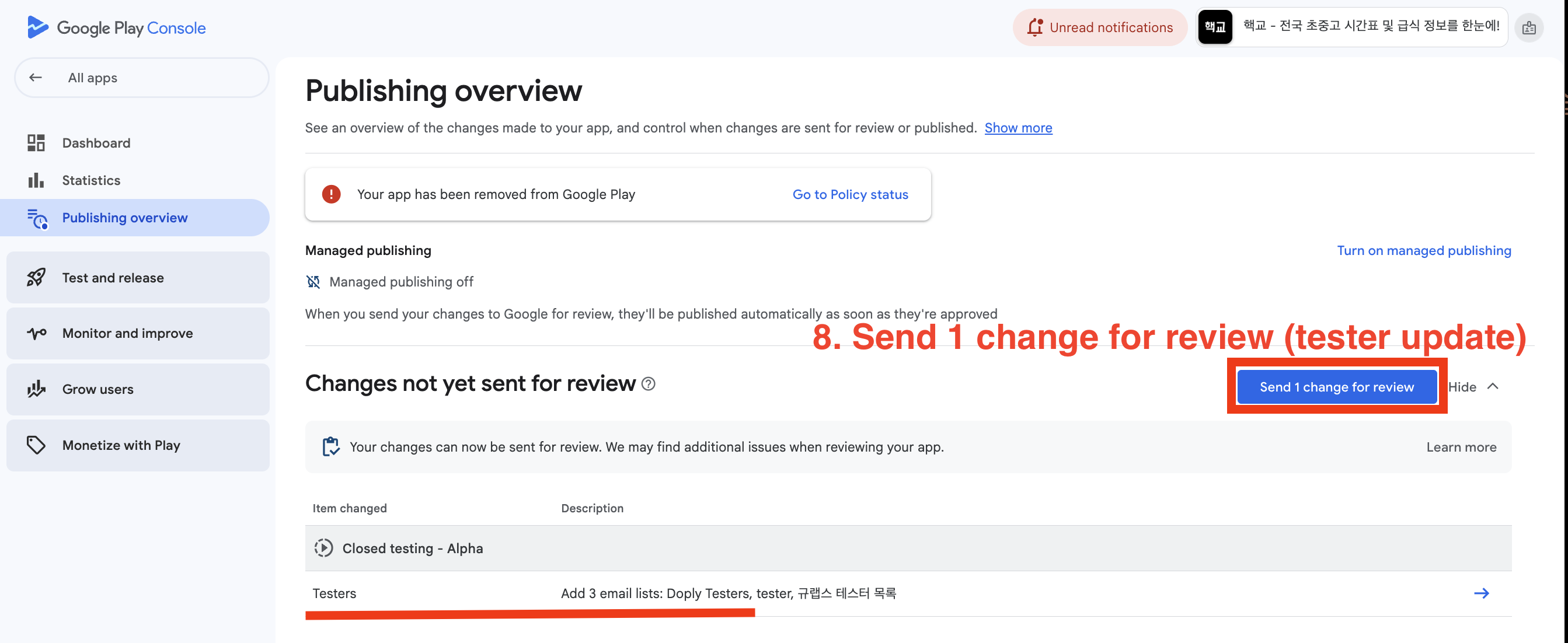
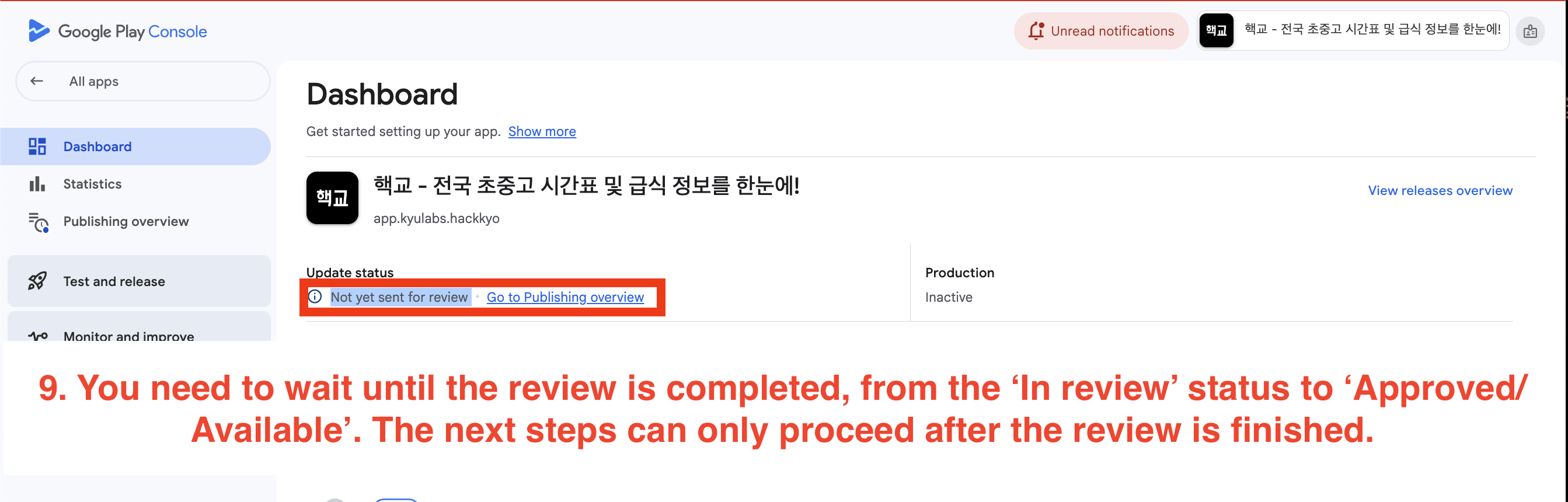
After adding Doply internal testers, please confirm that the app review has been completed. "Under review" should not be visible on the Play Console dashboard.
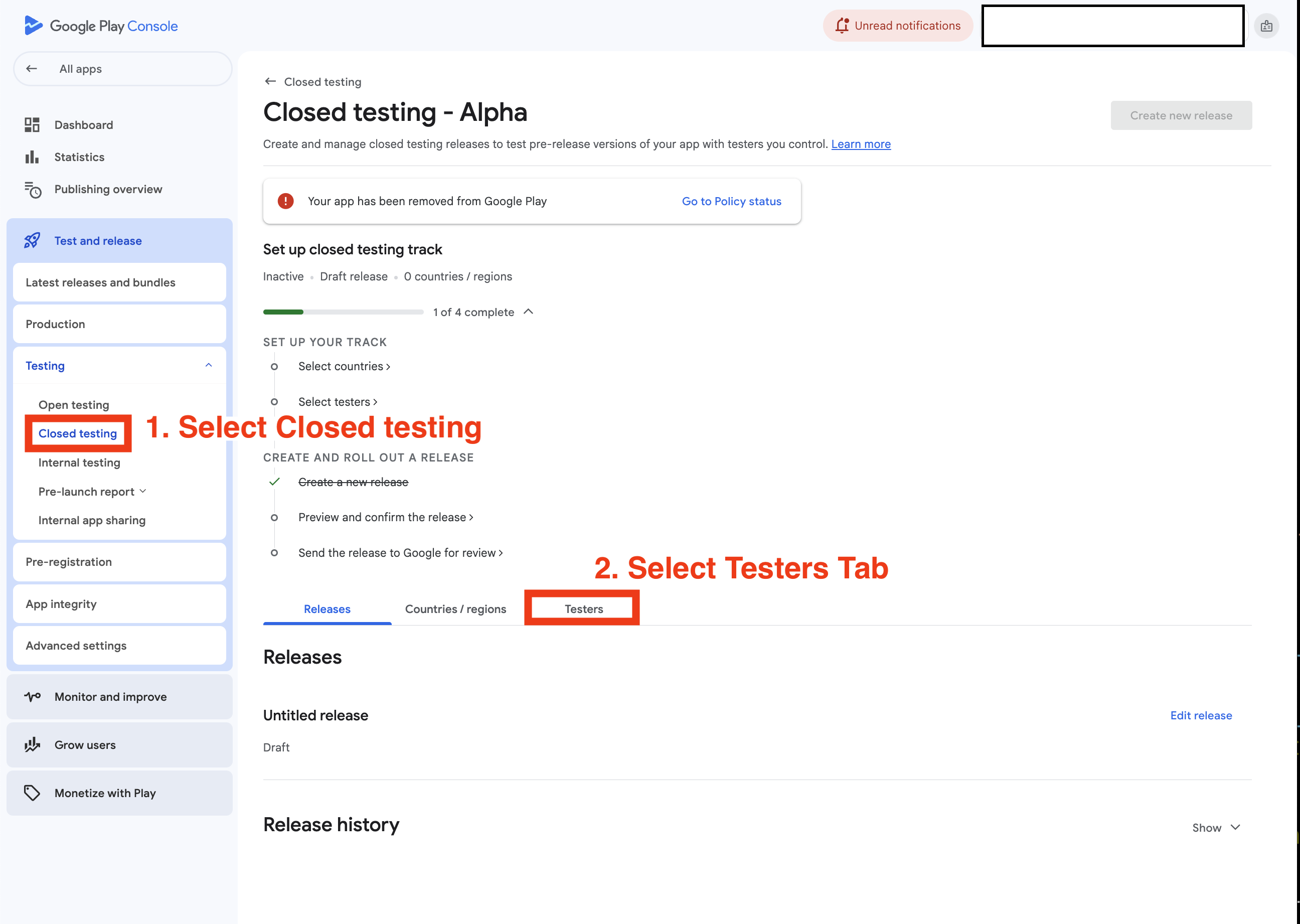
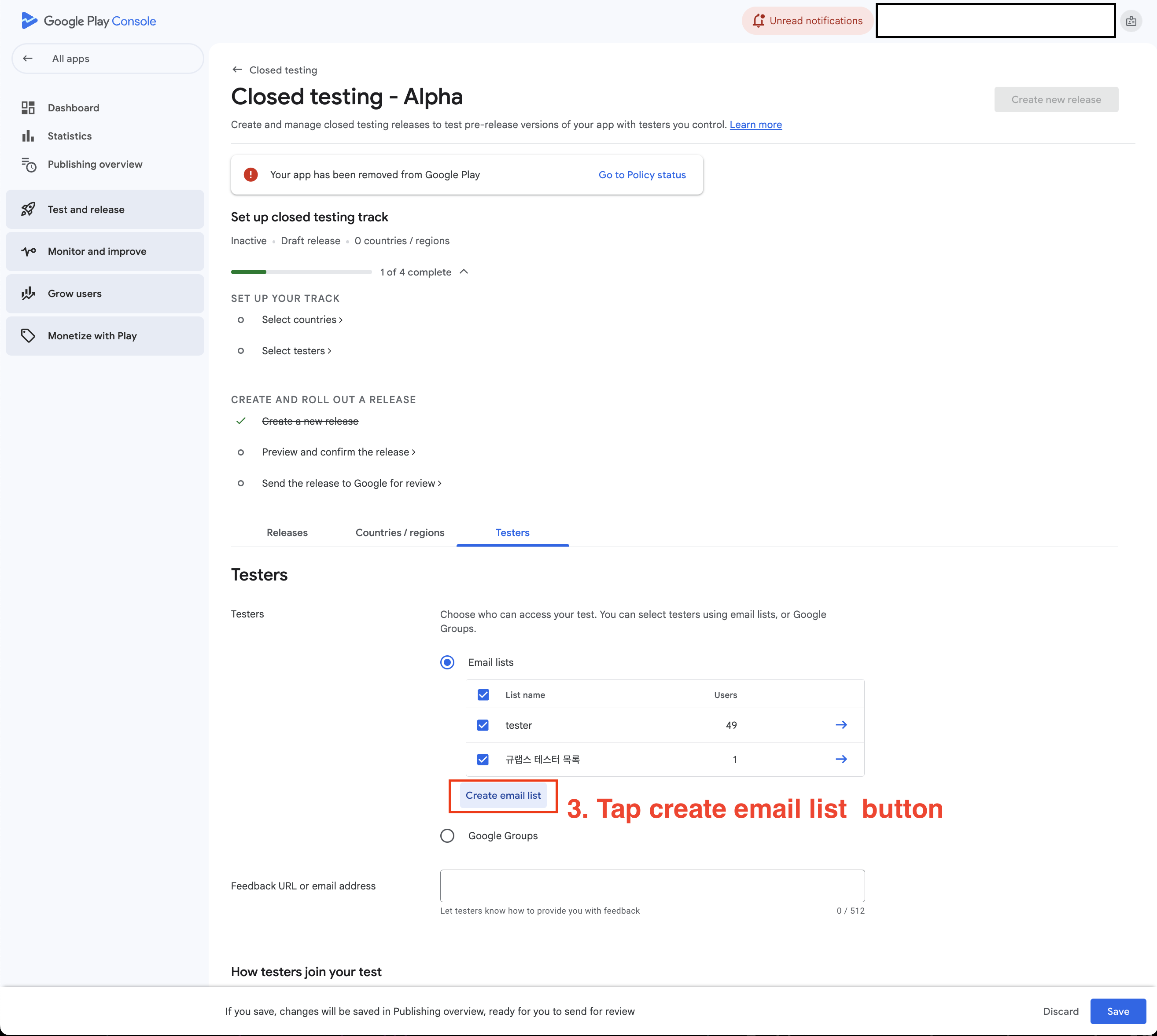
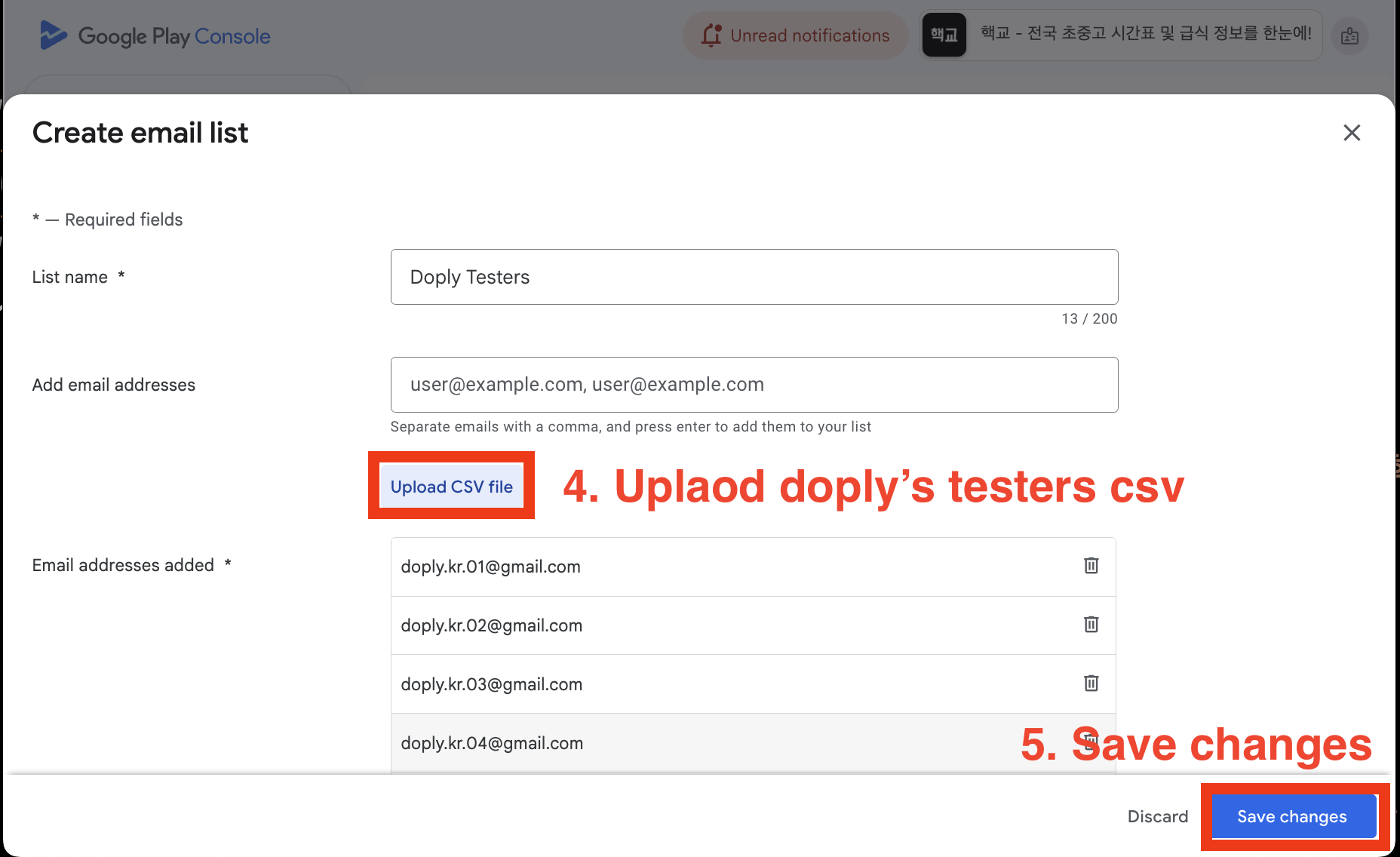
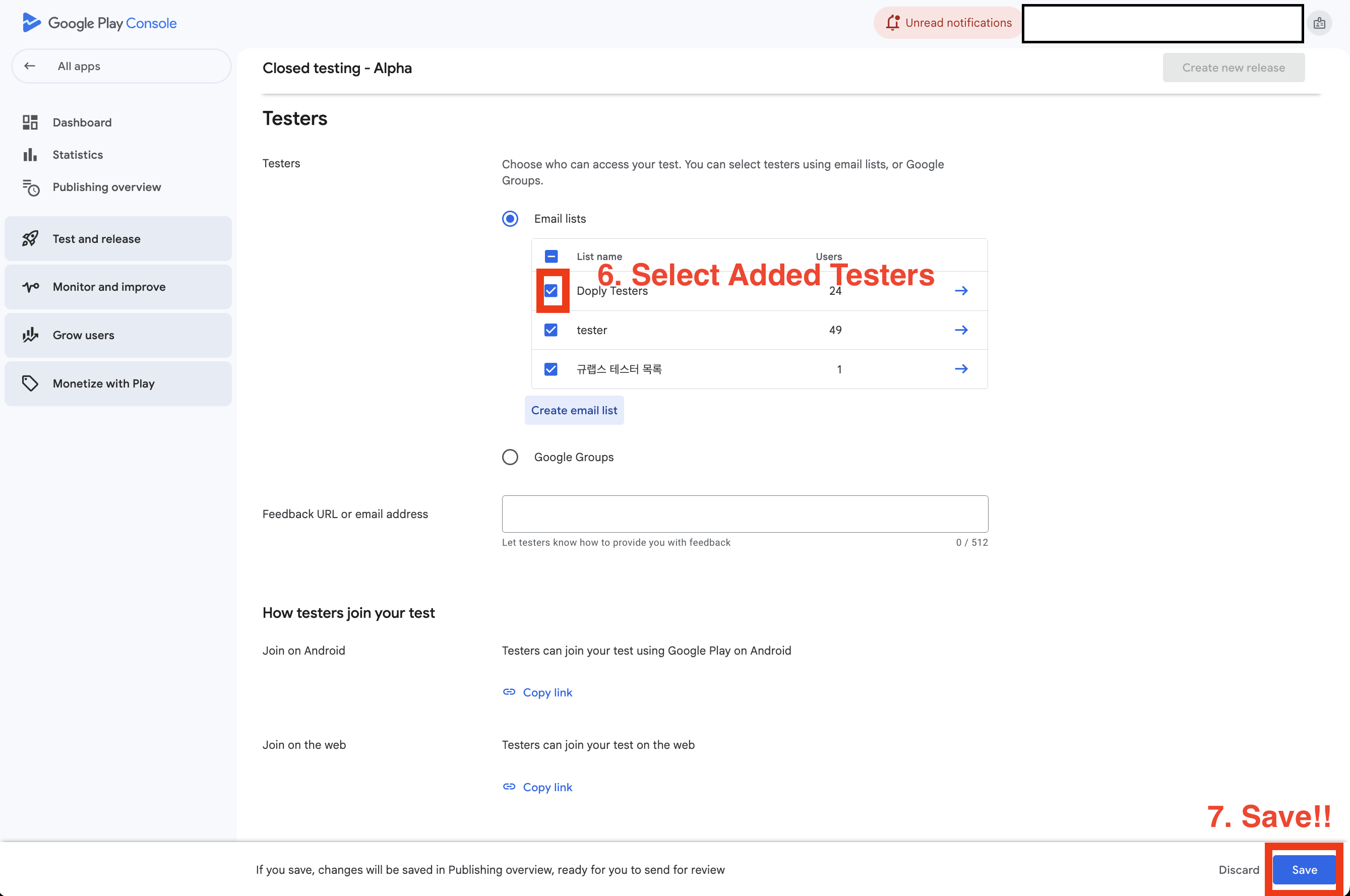
In Doply's "Closed Testing" menu, click the "Register App" button to register the app for closed testing.
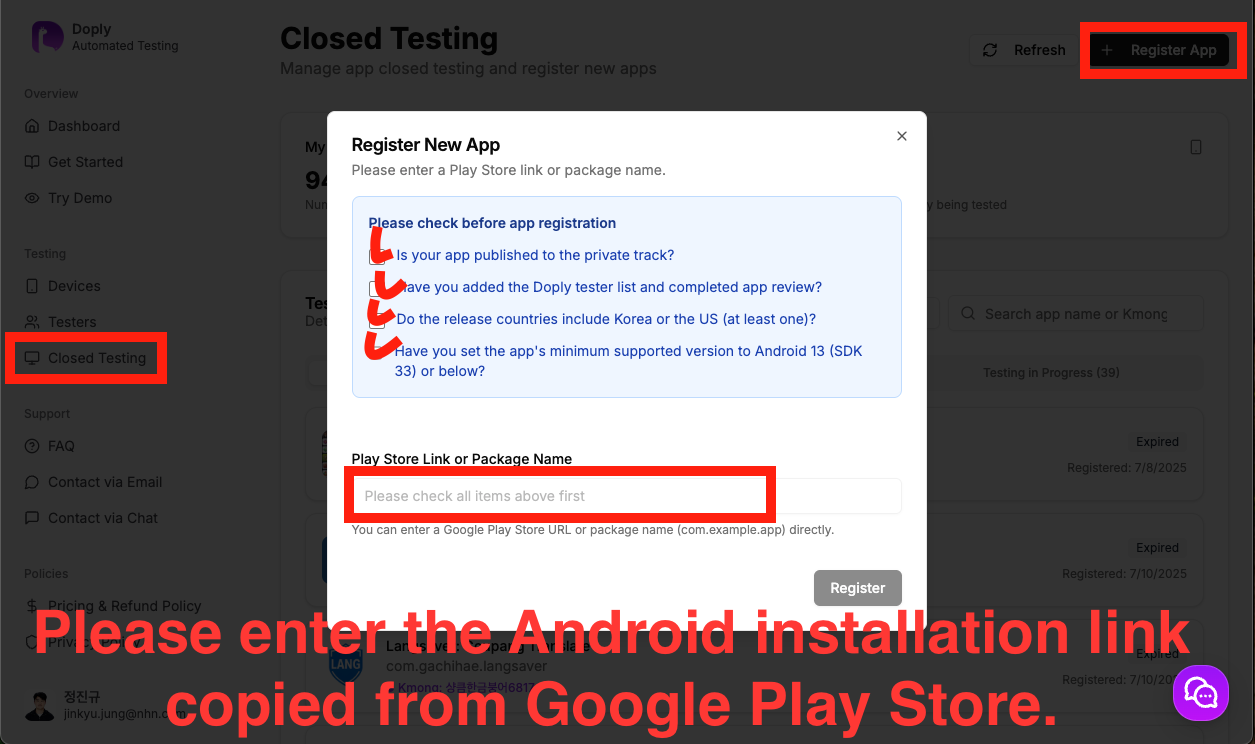
✓ Supported Countries
Korea must be included
✓ Android Version
Minimum SDK 33 (Android 13) or below, Target SDK 36 or 37
✓ App Type
Free/Paid app classification (paid apps must be made temporarily free)
Service may be difficult to use if the following conditions apply:
- • Release countries do not include Korea
- • Android minimum supported version is API 34 (Android 14) or higher
- • Paid app (set a 100% discount in Play Console to make the app temporarily free during the test period. Google guide)
- • Adult verification required during installation
When the number of installable devices is determined to be 14 or more, the status changes to service available.
Currently Paid Service: For installation requests, please contact us through "Contact Us".
Click the "Installation Request" button on the app details page to start automatic installation.
The system automatically installs the app on registered tester devices. Progress can be checked in real time.
When the number of installations reaches 12 or more, the app status changes to "Testing" and the full testing period begins.
Installation Retention Period: Maintained for 18 days
The app is maintained for 18 days to prevent automatic deletion from devices.
Minimum Installation Count: 12+ devices
According to Google Play policy, a minimum of 12 devices must be installed.
Upload and release a new version of your app to Google Play Console every 3-4 days.
The Doply system automatically checks and proceeds with updates, and you can check the progress on the installation history page.
Update Frequency: 3-4 day intervals
Maintain appropriate intervals, not too fast or too slow.
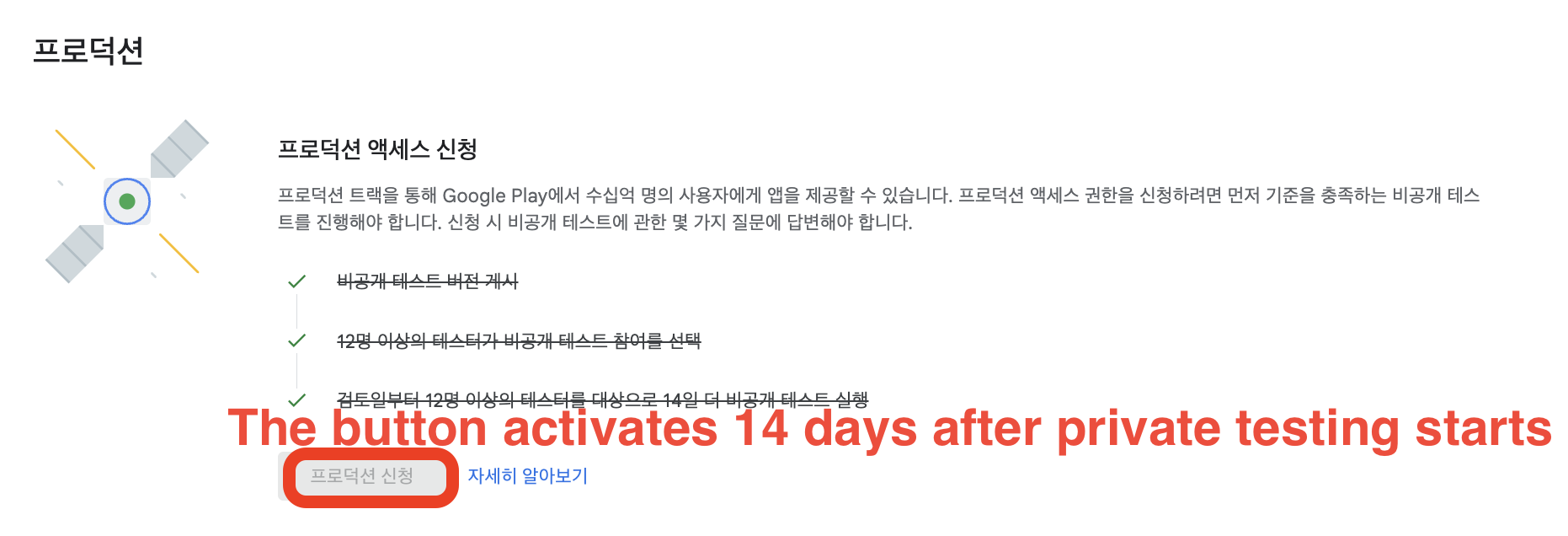
Production application is possible only after exactly 14 days from the start date of closed testing.
Google Play Console → Dashboard → Click Production Application button
Complete the Google Play policy survey. Refer to the recommended answers provided by Doply. You can check service-customized recommended answers through the "Production Survey" menu on the app details page.
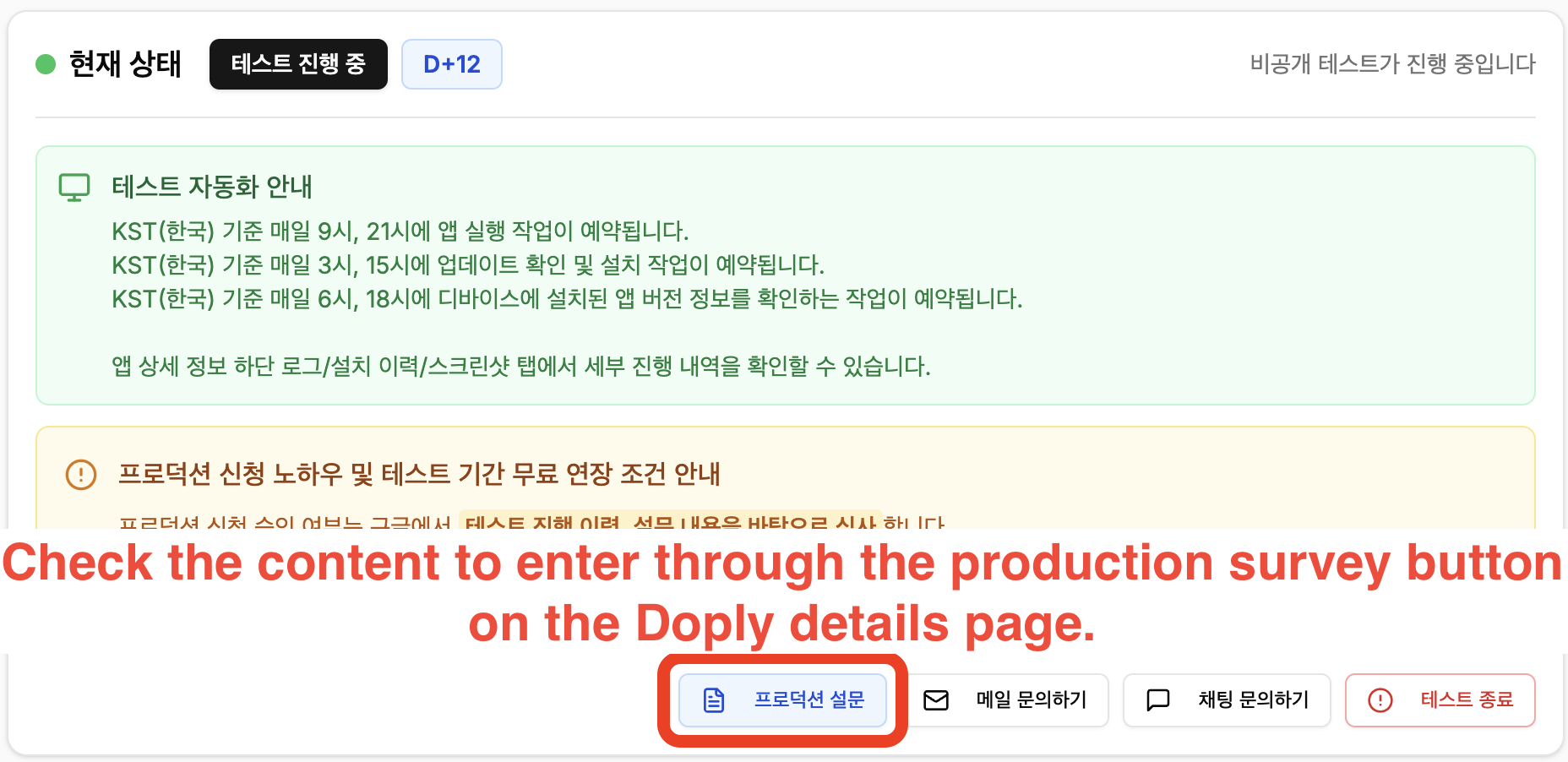
Survey Completion Guide:
- 1. Closed testing information
- 2. How easy was it to recruit app testers?
- 3. Tester engagement during closed testing
- 4. Summarize and provide feedback received from testers. Methods used to collect feedback
- 5. Main target audience of the app
- 6. Explain what value the app provides to users
- 7. How many installs do you expect the app to have in its first year?
- 8. How do you plan to change the app based on what you learned from closed testing?
- 9. How did you determine that the app is ready for production?
- Additional survey: Measures and changes for previous rejection reasons (if rejected)
After final review of all information, click the "Release to Production" button to request review.
Review Period: 2-3 business days
Google Play reviews the app and notifies approval results via email.
Approval Success Rate: 90%+
Most apps that have 2 or more updates during the 14-day test period receive approval.
Please contact us anytime with questions or service inquiries!
🎉 That's it once all processes are complete!
Happy coding! 😊